
⭐ F&B activity view
How to use the Food & Beverage activity calendar on the restaurant report
If your hotel still manages restaurant reservations and other restaurant activities on paper, spreadsheets, or a manual checklist, the Food & Beverage activity calendar gives you a simple way to manage them in Planniac.
It isn’t intended to replace a full restaurant reservation system or a reservations-enabled POS. Instead, it gives smaller hotel restaurants a creative way to use the Planniac activity setup you already have to keep track of restaurant reservations, room service, takeout, delivery, catering, private events, and other F&B activities – all in one place.
Think of it as a simple F&B reservation and activity list without the cost and complexity of a dedicated restaurant reservation system. It's included with even the most basic Planniac subscription.
F&B activity calendar
The F&B activity calendar is the second tab in the Restaurant Report.
It shows F&B-related activities in a simple list that restaurant staff can use throughout the day.
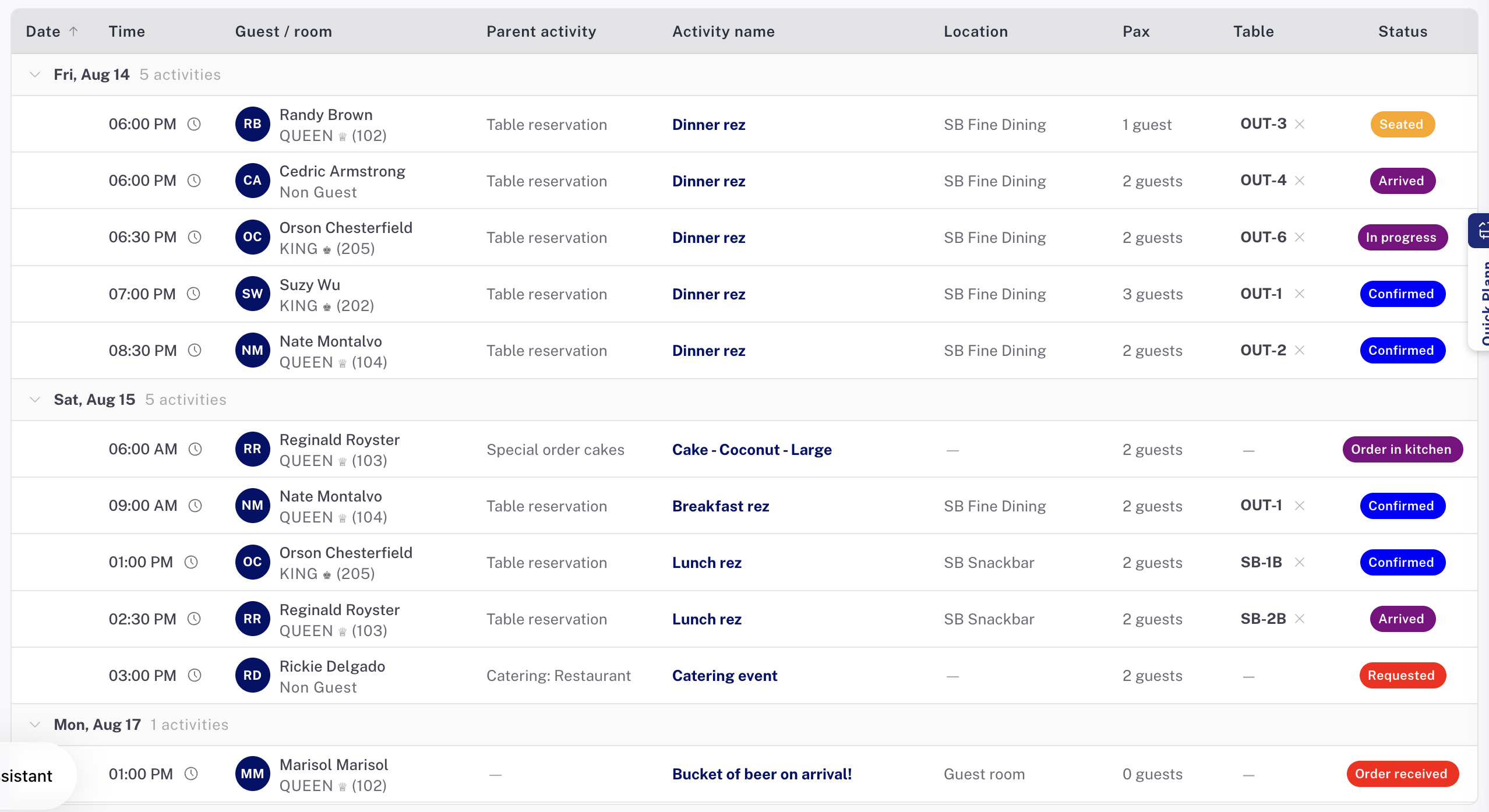
The list has this info for each activity:
- Date and time
- Guest and room
- Parent activity (eg. Table reservation, Room service, Delivery order, Private event, etc.)
- Activity name (eg. Breakfast service, Dinner service, Lunch service, Breakfast room service, Rehearsal dinner, Wedding reception, etc.)
- Location (use your restaurant name if you have several, or 'Restaurant' if you only have one. You can also use locations like 'Guest room' or 'Pool area'.
- Pax
- Table
- Status
You can use the calendar for much more than restaurant reservations. For example:
- Restaurant reservations
- Room service
- Takeout orders
- Delivery
- Catering
- Private restaurant events
- Special meals or dining experiences
- Other food and beverage activities
Finding what you need
The calendar is designed for quick, at-a-glance use, especially when restaurant staff are working from a tablet.
Date
- By default, the calendar opens to Today.
- Future activities can be viewed by selecting a date from the calendar.
- You can also choose All dates to view today’s activities and future activities together.
- Past dates are available when you specifically select them from the date picker.
Filter the list
Several fields can be used to quickly narrow down the list. This is where it would be super helpful for a host who is checking in restaurant customers:
You can filter by:
- Parent activity ('Table reservation')
- Activity name
- Location
- Date
Clicking a parent activity, activity name, or location in the list applies that filter. Click it again to clear the filter.
This makes it easy to do things like:
Show me all restaurant reservations
or
Show me all room service activities
or
Show me everything happening in the restaurant today.
Guest and room information
- The Guest/Room column shows the primary guest and their hotel room, if they are hotel guests. If they are outside guests. the room won't display.
- Hover over the room or guest information to see additional profile information.
- If you need more information, like contact details or full allergy details, select the guest to open their guest profile.
Allergies and guest notes
- An allergy indicator is displayed when important allergy information is associated with the guest.
- This is intentionally visible directly in the activity list so restaurant staff don’t have to open a guest profile just to discover an important allergy.
- Guest notes can also be viewed from the guest information.
Parent activities
Parent activities help organize your F&B activities into broader categories.
For example, a hotel might have parent activities such as:
- Restaurant
- Room service
- Takeout
- Catering
- Private events
The exact parent activities available depend on how your hotel has configured its activities in Planniac.
Select a parent activity in the list to quickly filter the calendar to that type of activity.
Activity names and status notes
The activity name tells you exactly what the guest is doing or ordering.
For example:
Dinner reservation
Room service order
Takeout order
Private dinner
Status notes provide additional information when staff need context about an activity.
Hover over the activity or status information to see the full note when one is available.
Pax
Pax shows the total number of adults and children associated with the activity.
This is especially useful for restaurant reservations because it lets staff quickly see how many guests are expected.
For example, you can filter the list to restaurant reservations and use the Pax column to see the expected number of diners.
Coming soon: Daily totals will make this even easier by showing the total number of guests at the bottom of the filtered list. For example, you could look at tomorrow’s restaurant reservations and immediately see that 42 guests are expected for dinner.
Tables
The Table column lets you assign a restaurant table to an activity.
Tables are configured in Settings > Activity.
You can set up information such as:
- Table name
- Table capacity
- Table type
- Section
- Provider
For now, the table name is the primary information used in the F&B activity calendar.
You can select tables from the table selector and assign them to activities.
Future development: Capacity of the tables will restrict their booking and tables can be 'pushed together' to create more capacity.
Statuses
F&B activities use their own set of statuses so restaurant staff can see where an order or reservation stands.
Examples include:
- Requested
- Confirmed
- Order received
- In progress
- Seated
- Assigned
- Complete
- Delivered to room
- Order picked up
- Order delivered
- Cancelled
- No show
Your available statuses and how they appear on the report are controlled by the F&B status settings.
The status color makes it easier for staff to understand what needs attention without opening each activity.
Updating an activity
The F&B activity calendar is not just a read-only report.
You can update important information directly from the report, including things such as:
- Date
- Time
- Location
- Table
- Number of guests
- Status
For more substantial changes, you can open the activity and edit the full Plann.
This means staff can use the F&B calendar as their working list instead of constantly switching between reports and the main planner.
Hotel guest list tab
The first tab of the Restaurant report is the Hotel guest list.
This is the traditional restaurant guest list view, focused on hotel guests and their stay information.
Use this view when restaurant staff primarily need to answer questions such as:
Which hotel guests are staying with us today?
What meal plan does this guest have?
What room are they in?
The F&B activity calendar is different. Use it when you want to see the actual F&B activities taking place.
Using Planniac for restaurant reservations
One of the simplest ways to use the F&B calendar is as a restaurant reservation list.
For a small hotel restaurant, you can create restaurant reservation activities in Planniac and then use the F&B calendar as the restaurant’s daily reservation sheet.
For example:
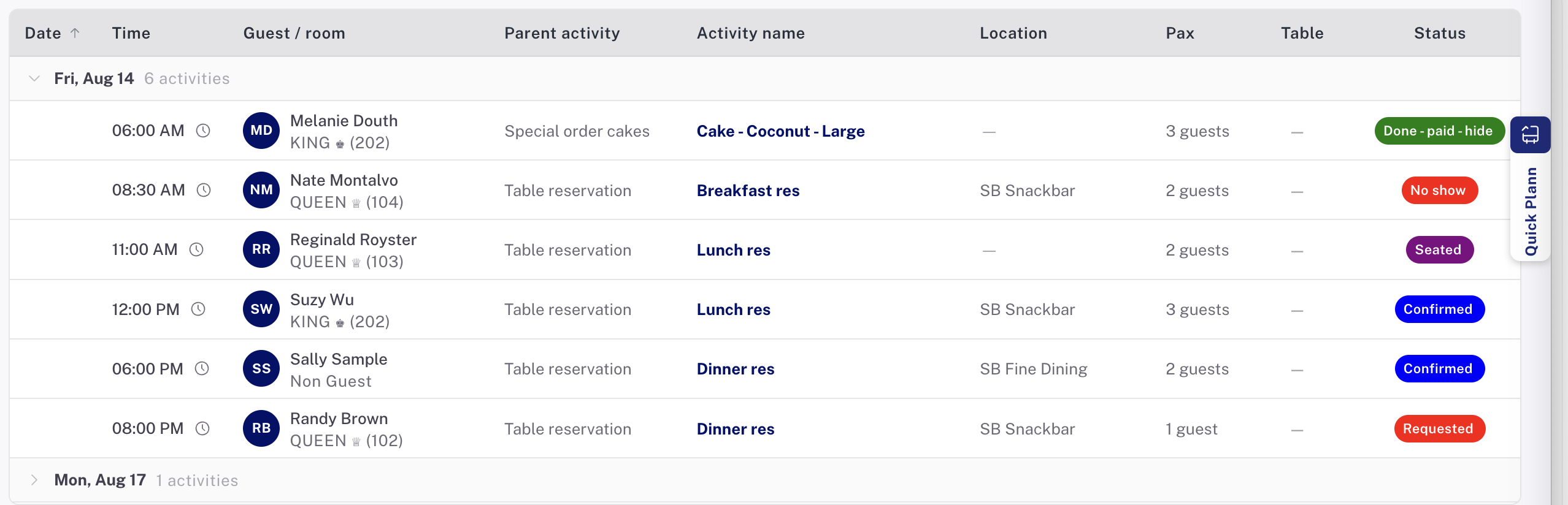
Staff can then work from the list throughout the service.
This is particularly useful for hotels that don’t need – or prefer not to pay for – a sophisticated standalone restaurant reservation system.
Outside guests
F&B activities don’t have to be limited to hotel guests.
You can also use the F&B calendar for outside guests, making it possible to manage restaurant reservations and other F&B activities for people who aren’t staying at the hotel.
Coming soon: A streamlined Add booking flow will make this much easier. Staff will be able to select an existing hotel guest or outside guest, choose a date and time, enter the number of guests, and create a simple F&B booking without going through the full Planniac planning process.
The new flow will also allow staff to quickly create a one-time, one-day outside guest when someone calls or walks in to make a reservation.
Table availability
Coming soon: Planniac will add table-capacity and availability checks to the F&B booking flow.
The system will be able to help prevent staff from:
- Assigning a table that is too small for the party
- Assigning a table that is already being used during a conflicting time
- Overlooking the option to combine tables for larger parties
For example, a party of 12 could be accommodated by combining three tables with a capacity of four.
A simple F&B system for small hotels
The Food & Beverage activity calendar is intentionally simple.
It gives a small hotel a way to keep restaurant and F&B operations organized without requiring a separate reservation platform.
You can use the same Planniac activity system to manage:
Restaurant reservations + room service + takeout + delivery + catering + private events + other F&B activities
That means your restaurant staff have one place to look, while hotel staff can continue using the rest of Planniac to manage the guest experience.
It isn’t meant to be a full restaurant POS or enterprise reservation system.
It’s a simple way to make the tools you already have in Planniac work for your hotel’s food and beverage operation.