✅ HOW TO: Preferred language display
Planniac uses a tool powered by Google Translate to assist when English is not the most useful language for your Front Desk.
Settings for this are easy – you just need to understand where to find them.
Determining the most effecient language to use
First, you'll have to decide which language you'd like Planniac to be used in, for screen displays and also for customized content. This should be the most commonly used language to ensure accuracy.
Most of the content would be best written in the hotel's default language, including:
- Activity names
- Activity descriptions
- Status lists
- Hotel information guide
Settings > Business information
This is where an Admin user will need to activate the translation feature. To do that, find the setting option on the page and then select the hotel's default language.

Important note: This will change the default language for all current and future team members. Each team member will be able to choose a different language in their own profile settings.
A hotel can only have one default language. So it's important to choose this as soon as you activate your account, so that all the information you choose to include in Planniac is input in the default language.
Pro tips for multi-lingual hotels: Even though you have to work with one default language, you can write your activity names and descriptions in ways that help the translation tool (Google Translate) understand what you are describing.
- Just insert keywords in two languages so that they appear when your users search. For example, an activity called Massage / masaje de 90 minutos includes both the Spanish and English words for massage, and a user would be able to undertand. (But remember it will also show this way on the guest itinerary)
- Sometimes, capitalizing words (Proper Nouns) or placing them in quotes can help, although this is not foolproof. Always capitalize when it's a proper name (like a national park or a historic monument) because the translate tool often knows not to translate those.
Setting the language for a team member
My profile
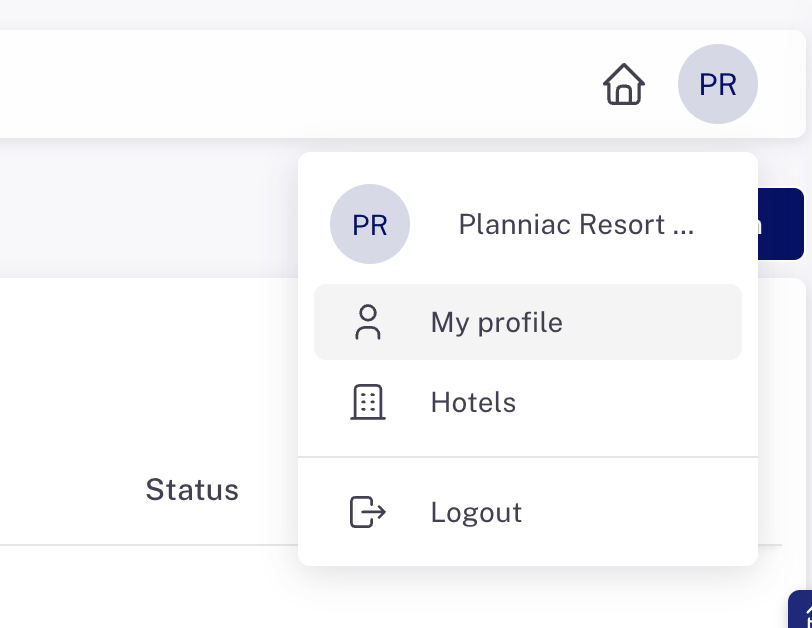
When the Admin sets the hotel's preferred language, that will appear automatically for all team members. But if a team member prefers to work in a different language, they are able to select it from their personal profile (found under the My profile settings on the upper right of every page).
 Settings > Team members
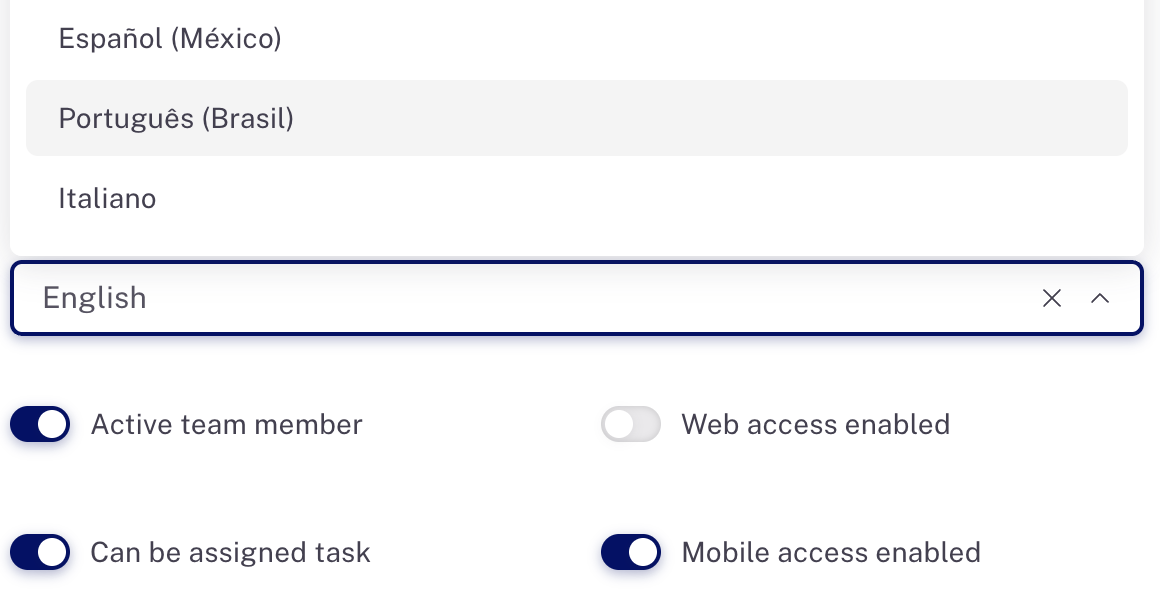
If a team member only uses the mobile version of Planniac, a user with Team Member permissions can assign a different language in Settings > Team members.
Itineraries, online offers and pre-registration
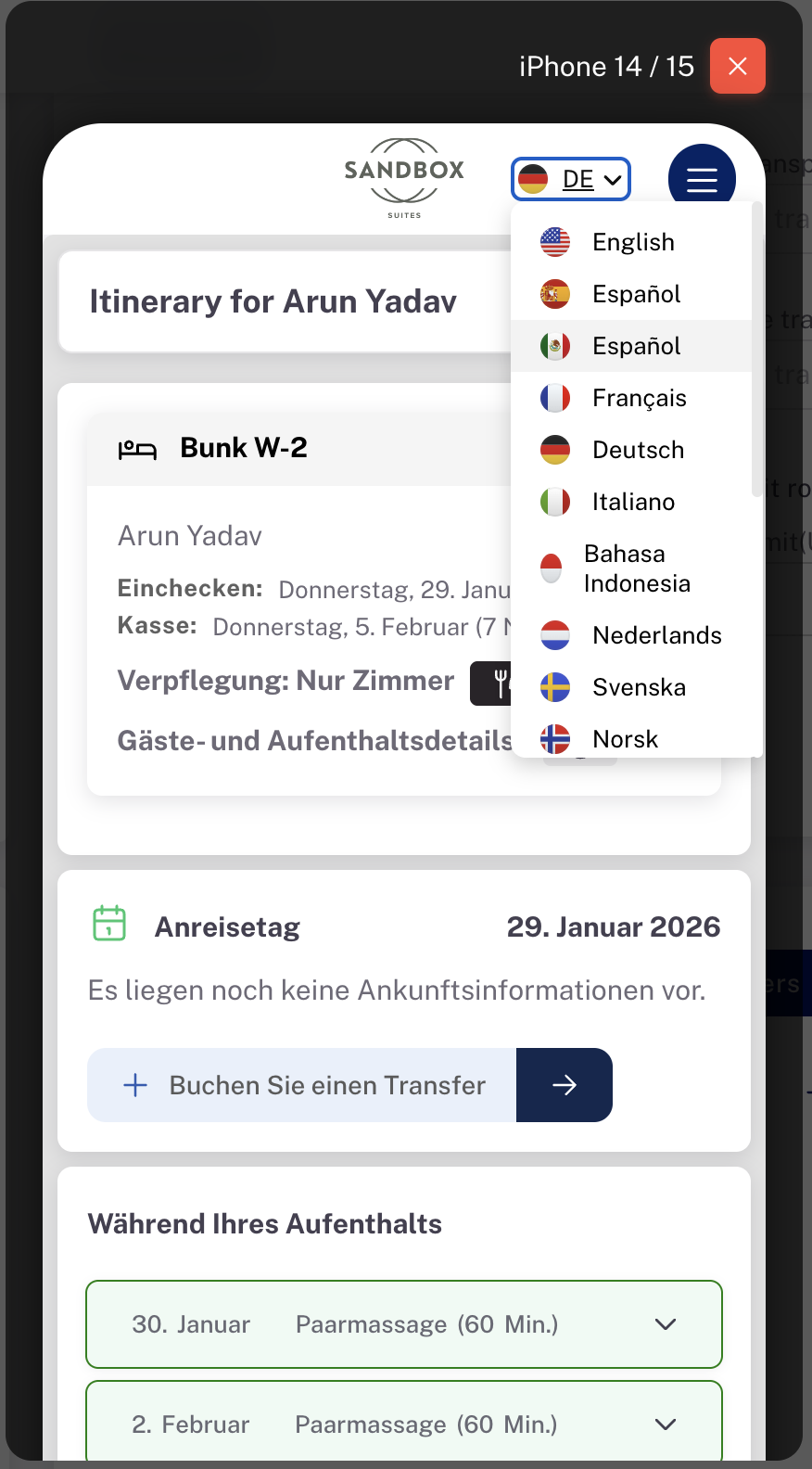
These modules, which can be seen by guests, each have a dropdown menu so the guest can display the language of their choice.
Additional languages
It may be possible to add another language if your hotel's primary language is not listed as an option. Please send your request to support@planniac.com.