
Settings > Status lists
You can set any number of statuses that will appear in drop-down menus on the Planns page and when adding or editing specific guest planns.
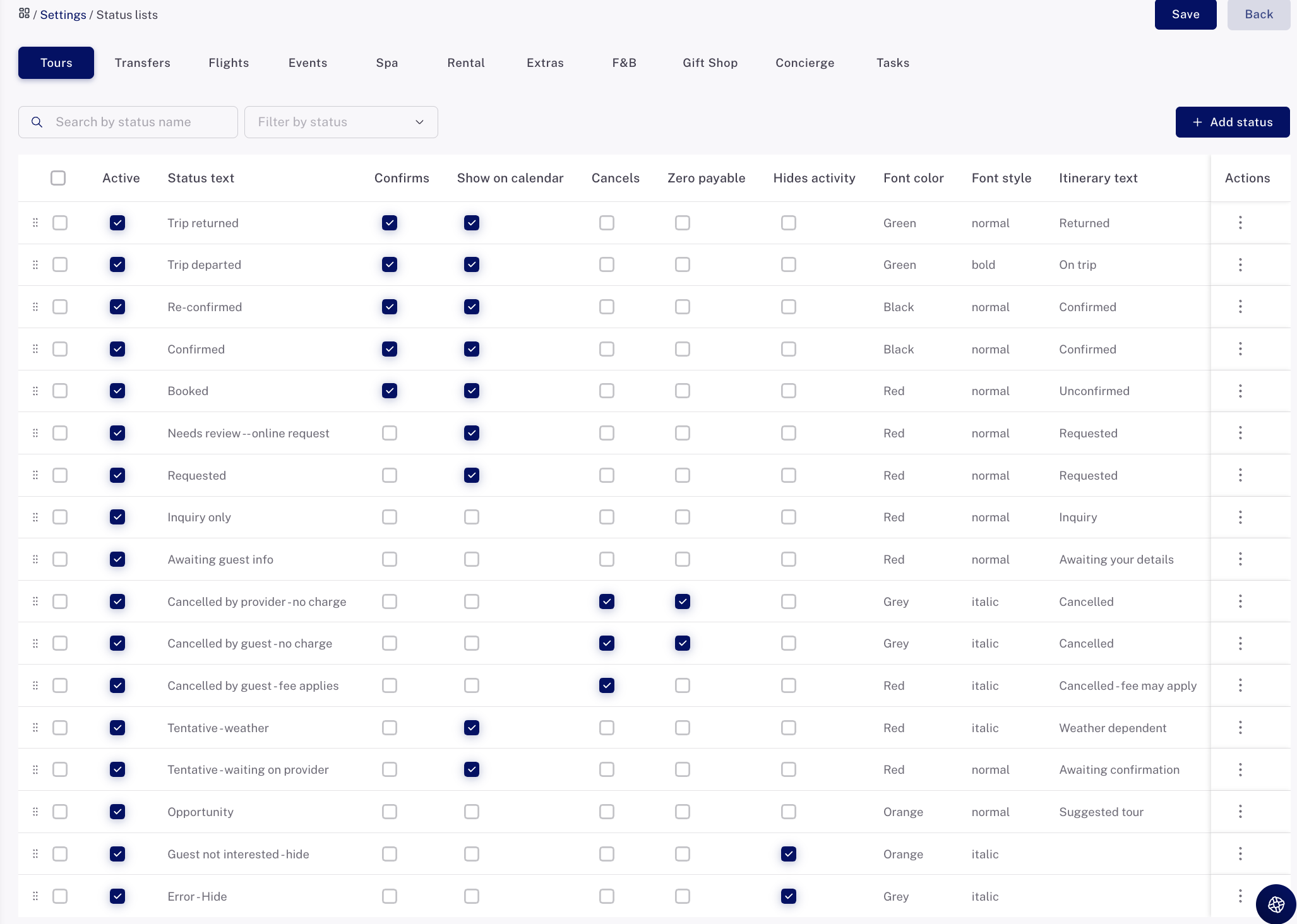
Status lists control how each activity is shown and managed inside Planniac. Every activity type—tours, transfers, concierge, tasks, flights—has its own set of statuses, and each status tells your team what stage the activity is in.
How to customize your status lists
Choose an activity type from the dropdown and you’ll see all its current statuses. From here, you can edit, add, or rearrange them.
Each row includes a few options:
- active shows whether the status appears on the planning screens.
- add a new status by typing into the first empty line.
- confirm tour if selecting this status should mark the activity as confirmed.
- show on driver list when this status should appear on the driver report.
- cancel activity if this status should cancel and remove the listing.
- zero payable when choosing this status should change the activity price to zero.
- hide on cancel if cancelled items using this status should disappear from the planns page.
- font color and style help highlight important statuses. For anything that needs attention (like “need to book”), we recommend using red so it stands out to the front desk.
- room screen text controls what the guest sees on their TV if you use the in-room module.
Statuses can be dragged to reorder them, but if you’ve added a new one, save it first before you move it.
Don’t forget to review every activity type—tours, transfers, concierge, tasks, flights—so your team has a clean, consistent set of statuses everywhere.
Why to customize your status lists 🚦
Statuses are the signals that guide your entire workflow.
Clear status lists mean:
- fewer missed follow-ups
- fewer “What does this mean?” mysteries
- faster decisions at the front desk
- instant understanding across departments
Color coding, clear terminology, and tidy lists help your team spot what needs attention at a glance.
It’s like giving your operation a set of bright, friendly traffic lights—easy to read and impossible to ignore.
Your team will thank you. Your guests will feel the difference.