
✅ HOW TO: Work with packages
Packages are useful for promoting things like a "Honeymoon package" or "3 Days of Adventure". They'll usually include things like tours, massage, or special arrival extras.
Planniac has a feature to allow you to create a package of activities you might otherwise offer separately. You create a fixed price for the package and you can offer it on your PMS, on Planniac's Online Offers page, or created manually when guests seek advice at the front desk, email, or phone you.
- Online offers – Using Planniac to upsell packaged offers could result in easy wins with arrival extras, spa packages or 'top 3 tours' packages.
- Front desk upsells – When that guest arrives and asks for recommendations, front desk can manually offer & book packages combining your most popular tours, meal plans and more.
- PMS rate packages – we can even give you code to add to a 'Book now' button on your website, taking the user right to a page on your Cloudbeds booking engine that features the rate package. If you'd like help with this, please contact support.
Set up package
- Go to Settings > Providers and make sure you have selected "Packages" as an activity type for your hotel or department that is offering the package
- Go to Settings > Activities or Catalog and ensure that each separate activity that you want to include in the package appears in your catalog already. For example, if your package includes "60-minute hot stones massage" and "Skydiving adventure", then each of those activities must already exist in your catalog
Pro tip: It's okay if your individual items have their own pricing, because the Package price will override the individual activity pricing. - In Settings > Activities or from the activity & pricing Catalog page, now it's time to create your package.
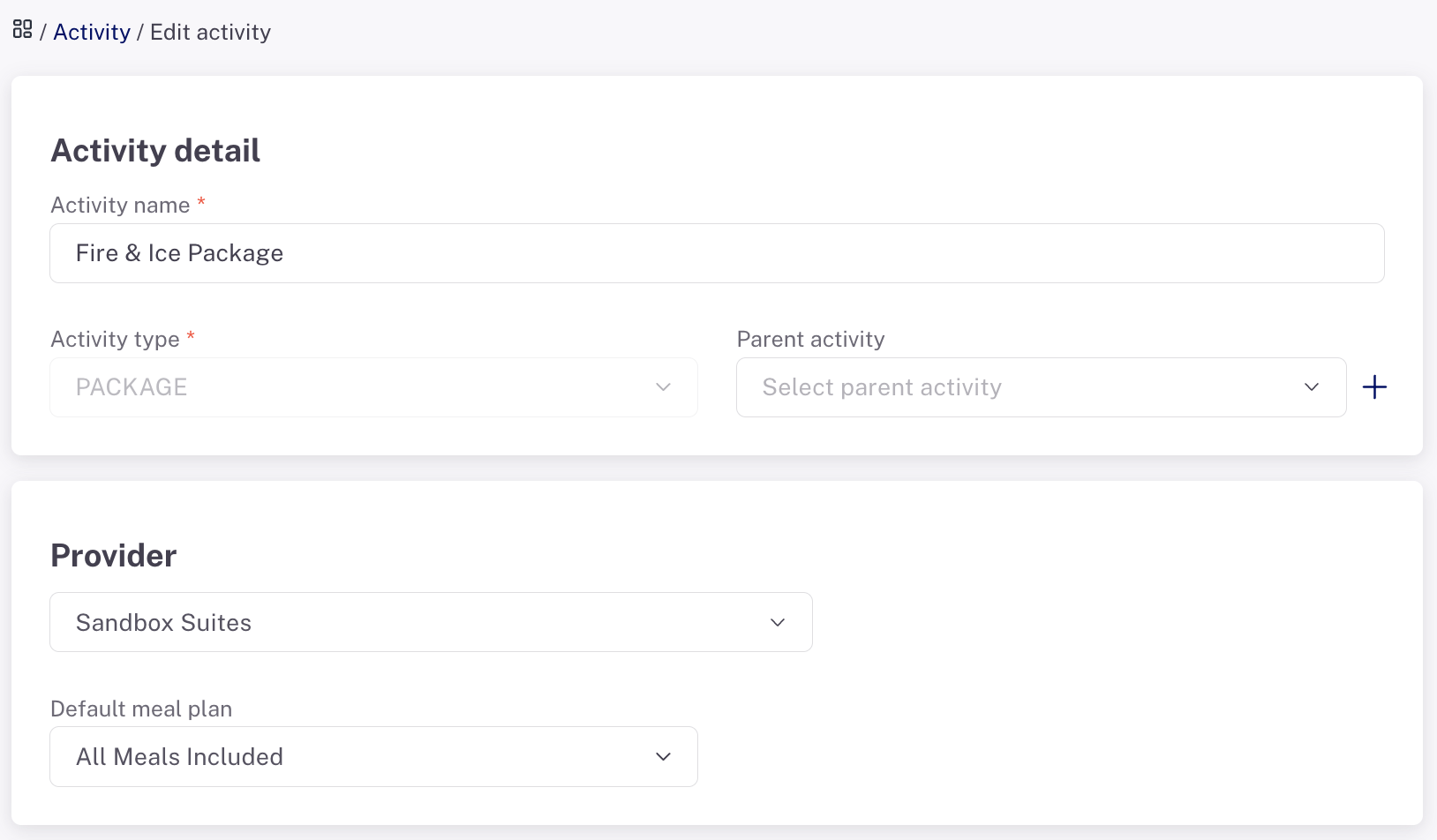
- Click 'Add activity'
- Set the provider of the package
- Select a meal plan if there is one included with the package.
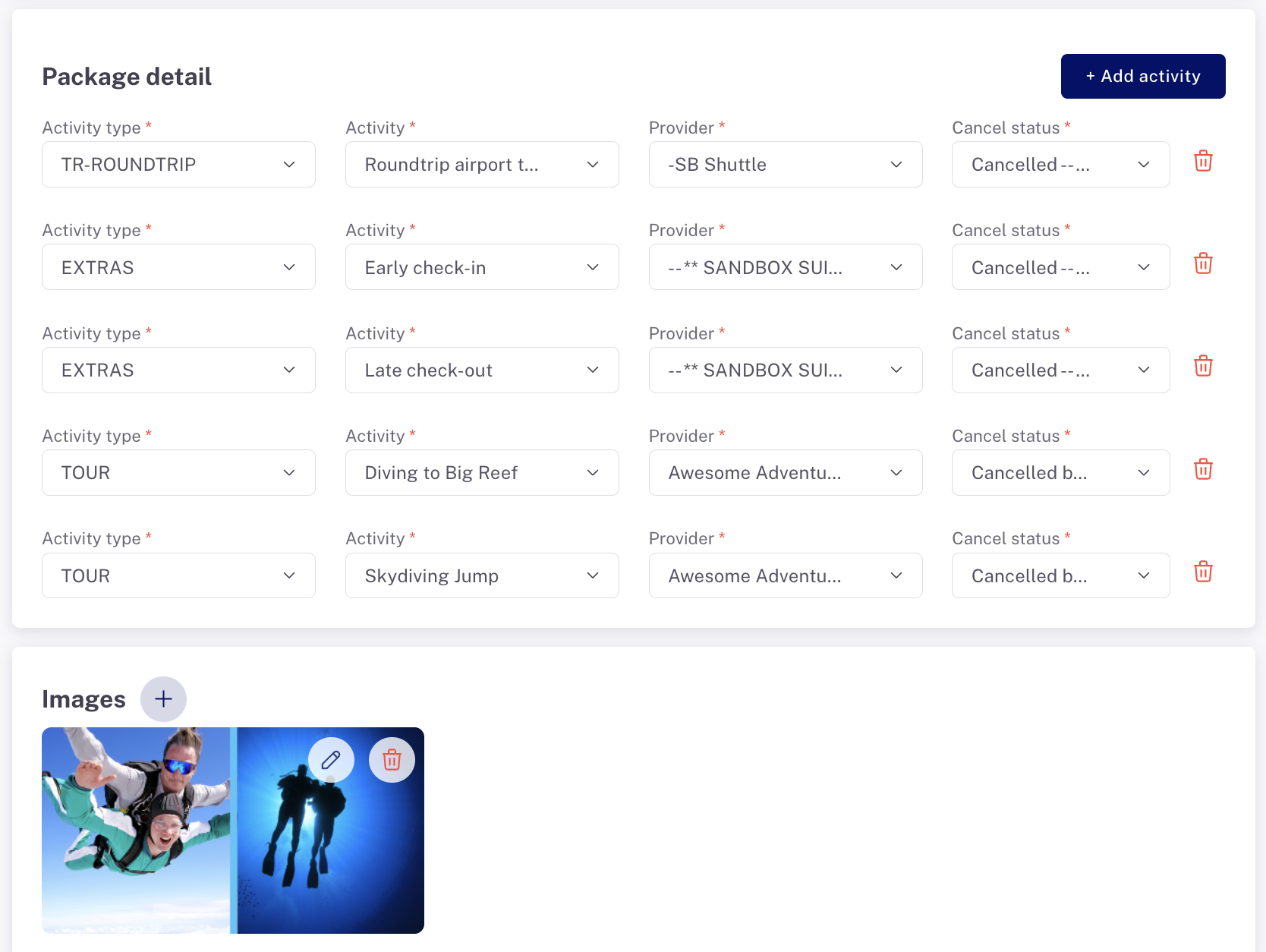
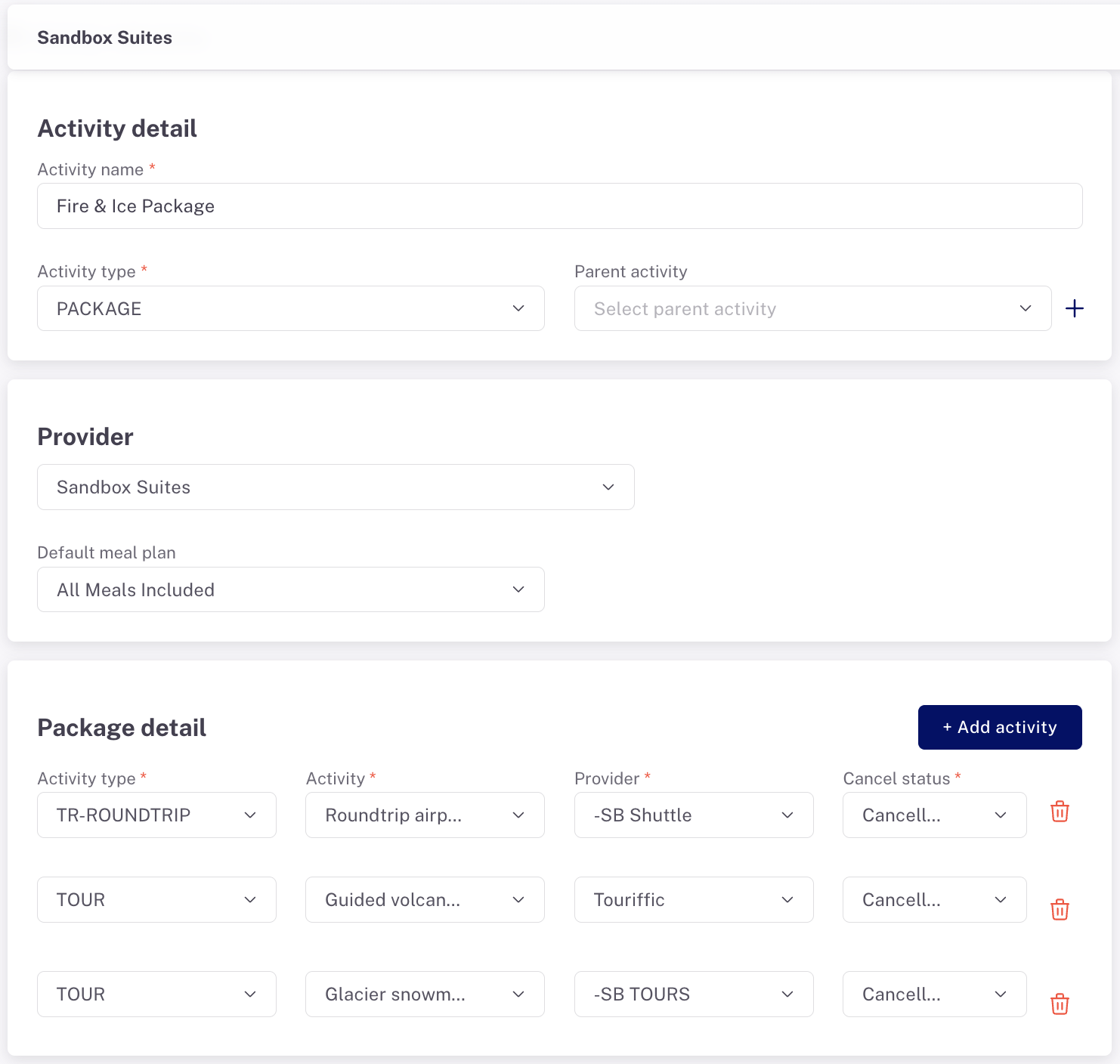
- For each activity you're selling with the package, include:
- an activity type from the dropdown list
- the activity
- a default provider (a user will be able to change this when actually booking something if you offer more than one)
- a default status to use in case the package is cancelled
- Press '+ Add activity' to add another included activity and select the same critiera
- Add a nice photo and description if you plan to market the package using Planniac's Online Offers which you can use as a standalone page or embed in your own website.
- Decide where to sell your package so that a package sold as an add-on flows right to Planniac for followup and management.
- Online Offers (see instructions below)
- PMS (see instructions below)
- Fill out the rest of the details on the page to make sure your package is visible to the right people.
- Save
- Click 'Add activity'
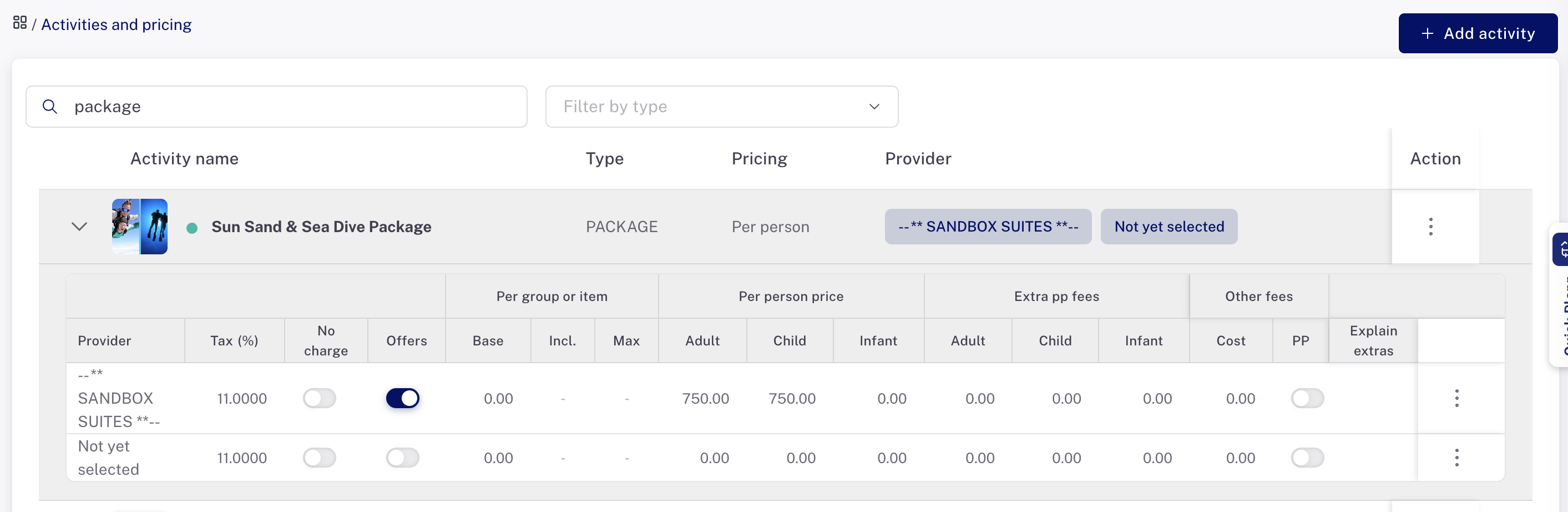
- After saving it, specify the package price on the pricing table of the Catalog.
- Now that you've set up the package, it's ready to use. Simply create a plann like any other, and you'll see your package as an option.
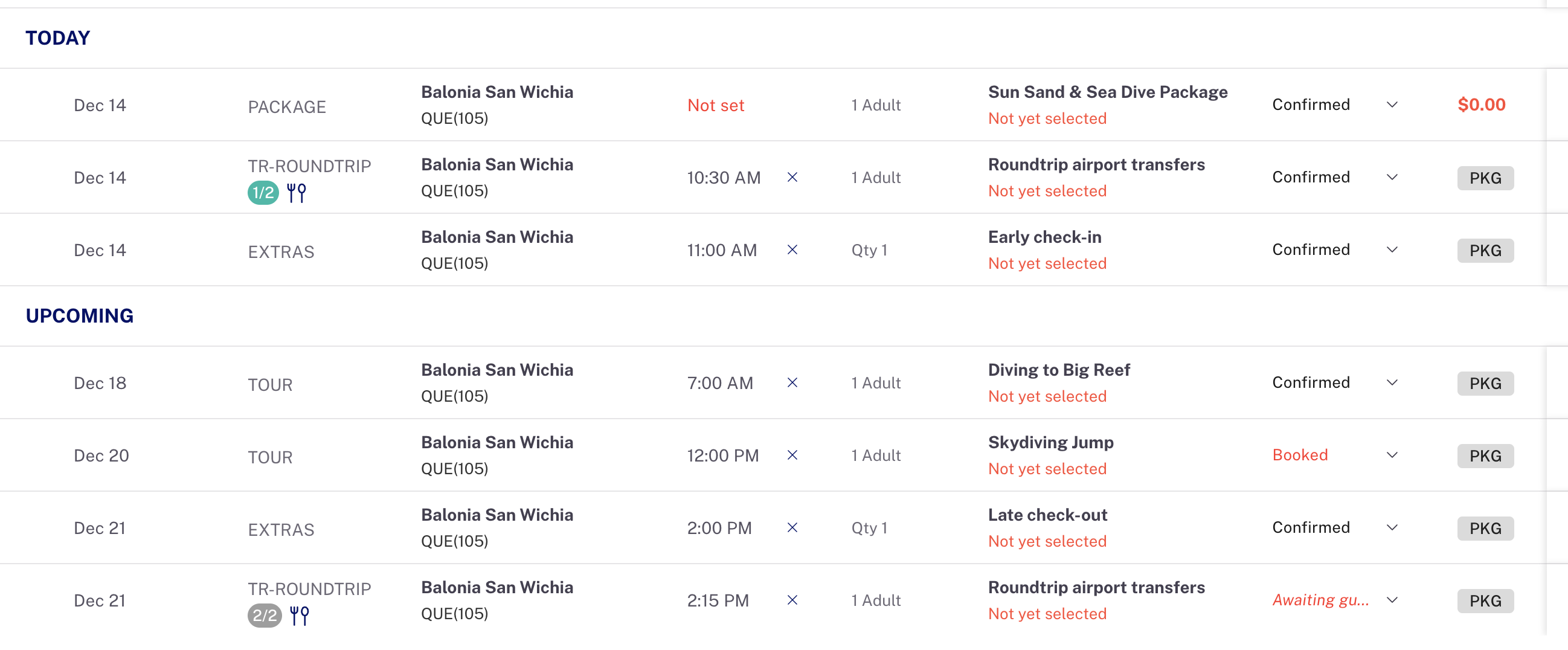
- When a package has been booked (manually, via upsell or via PMS add-on), it will appear like this on the planns page and you'll be able to schedule the individual parts.
If you're on the reservations or front desk teams, you'll appreciate just how quickly you can create a package with all the elements in place. Even the round-trip transfers appear correctly with first leg and second leg plans. Simply adjust the dates, times and providers on each one.

Connect a package on your PMS to Planniac
Let's say we have a package that we sell as a Cloudbeds add-on. The add-on describes the inclusions in the package with text, but the product and add-on is just one thing (the package). If you set it up correctly on Planniac, that package wil split into the separate components for you when it reaches Planniac.
You can set up the add-on to be either or both of these:
- An inclusion with a rate package (for example if you're selling "4-night Fire & Ice Package"
- An add-on the guest selects when finalizing the reservation "Fire & Ice Package"
Important: For this to work, the package needs to be its own product in Cloudbeds. If it's bundled in a rate plan, be sure to select from the dropdown in Cloudbeds on the rate plan where you specify what's included.
Setting it up on the PMS
Example: Fire & Ice Package: $650.00 pp
- Set it up as an item first, and then an add-on in Cloudbeds for $650/pp. It can be bundled in a rate plan (package) or sold at check-out, like any add-on. The description in Cloudbeds tells the guest that it includes complimentary round-trip airport transfers, an all-inclusive meal plan, a guided volcano trek, and snowmobiling on a glacier.
- Go to Settings > Products (in Cloudbeds) and create the package as an item under the Items and Services tab
- Be sure to include the marketing description
- Enter a price
- Go to the Add-Ons tab and create the add-on that includes the inventory item. They can both have the same name.
- Include the item you created
- Set the charge type (normall per-guest or per-room)
- Create a pricing interval
- Go to Settings > Products (in Cloudbeds) and create the package as an item under the Items and Services tab
- In Planniac, go to your Settings > Activities or the Catalog tab, click the '+Add activity' to add a new package or select one you've already created.
- Create or the package details
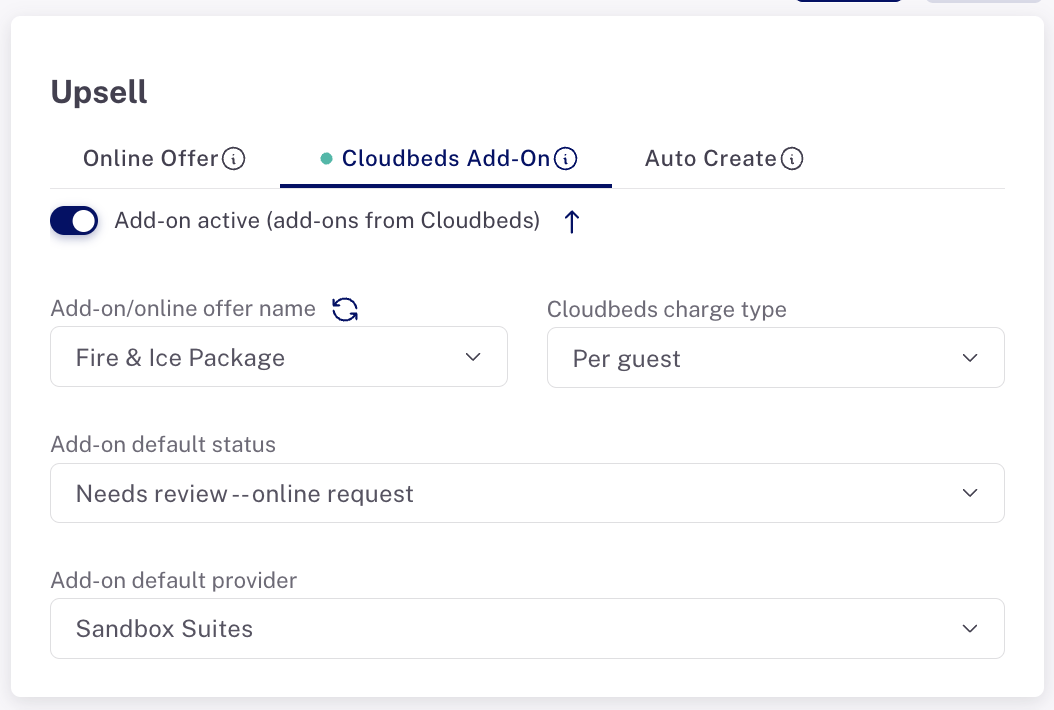
- Turn on the Cloudbeds add-on toggle.
- Select from the dropdown to link the Cloudbeds add-on.
- Confirm the charge type you've selected in Cloudbeds
- Select the default package provider (You can't change this later - it's usually the hotel that you would choose)
- Save
- Now when a Fire & Ice Package is booked, the package is billed on the PMS and then sent to Planniac along with the reservation info. The guest will have been assigned the meal plan and the other parts of the package will appear individually and automatically!
- See the dashboard for the latest add-on requests
- Verify each activity on the planns page. You'll need to make the arrangements for the transfers and tours, set the date and time, and update the status.
- Verify the meal plan by looking at the guest profile page

Pro tip: It's important to have each of the included activities set up to include any default information like start and end times, starting location, and itinerary information. That way there's very little to do other than confirm with the provider!