
🙋♀️ How do I set up 'Day View' in the catalog?
Understanding the Day View settings will help you optimize your team's work
Day view is:
- a way of getting a true picture of the activities scheduled for any given day.
- a way of quickly booking your most popular and commonly-booked activities
Activate Day View
If Day View does not show up in the site navigation for your hotel, contact Planniac to activate it for your account. There's no additional cost – it's included in every subscription.
Use the "Auto Day View" setting in the catalog to set which things get shown in Day View
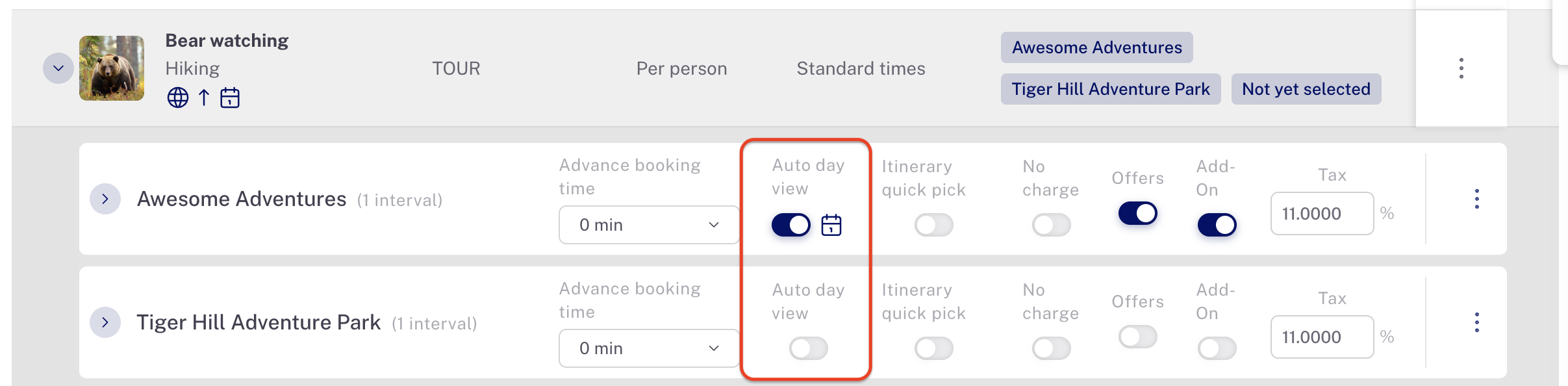
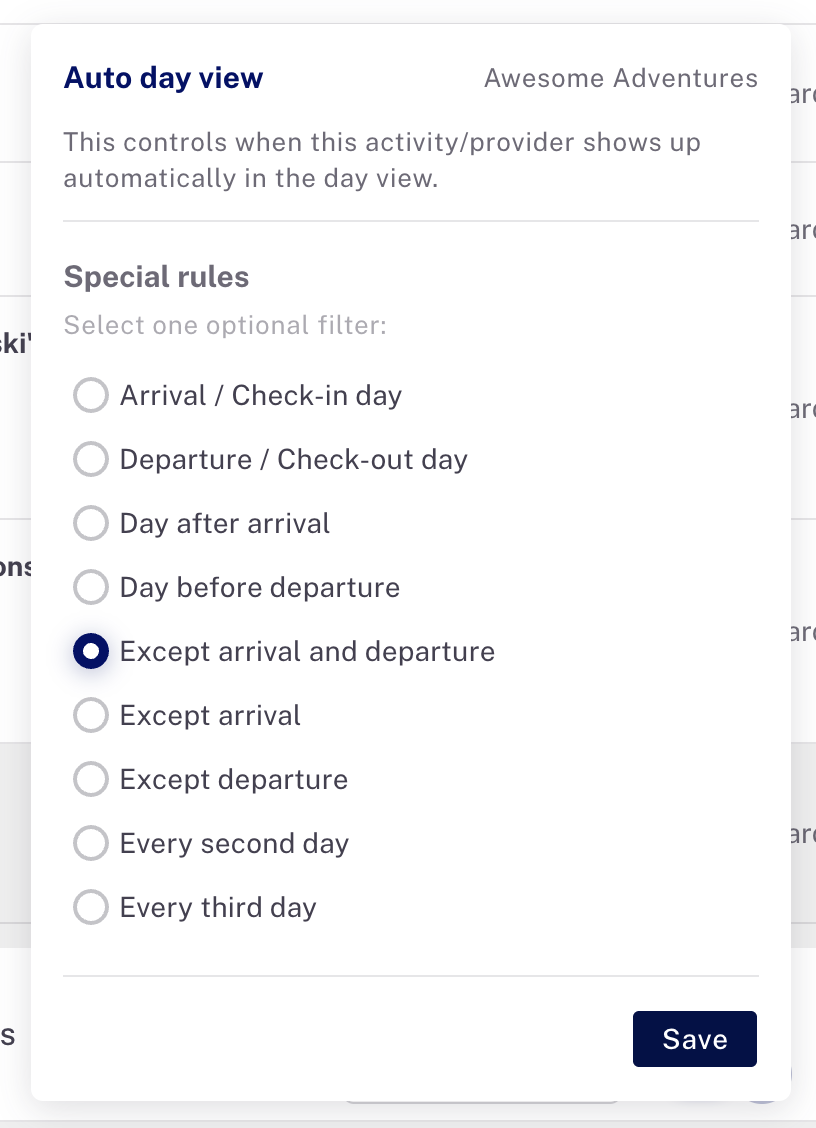
Important: Auto Day View won't work if the activity provider doesn't have an scheduling interval. It's important to do that first.
Last updated: 9/18/26, 7:46 PM