
Settings > Pack meals
Setting up tour lunches or other food and beverage 'pack meals' for tours, special events, etc.
If your tours or activities include meals, the Pack Meal feature helps you keep track and gives the kitchen a clear list of what to prepare.
Admin Settings
Here, you can add as many Pack Meal options as you want.
- Just head to Admin Settings > Pack Meals.
- Hit "+ Add New Pack Meal" or pick an existing one to edit.
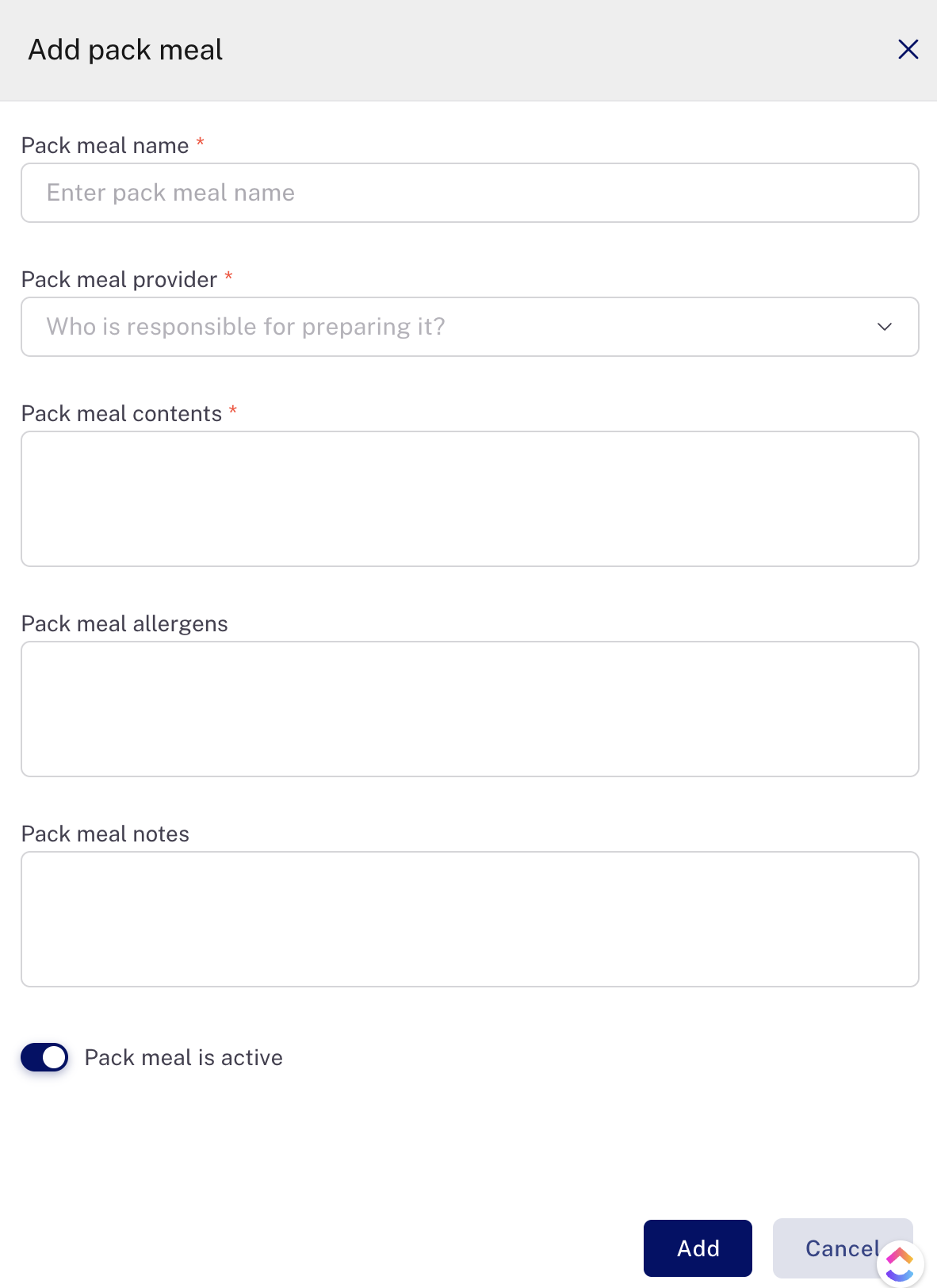
- On the form, you’ll fill in:
- Pack Meal Name: A short name for the kitchen.
- Provider: Usually your kitchen, but you can switch it up if needed.
- Contents: What’s in the meal.
- Allergens: Any ingredients that might cause allergies.
- Notes: Anything else the kitchen should know, like packaging details. Save it, and it’ll pop up as an option when you add meals to activities.
Assigning Pack Meals to Activities
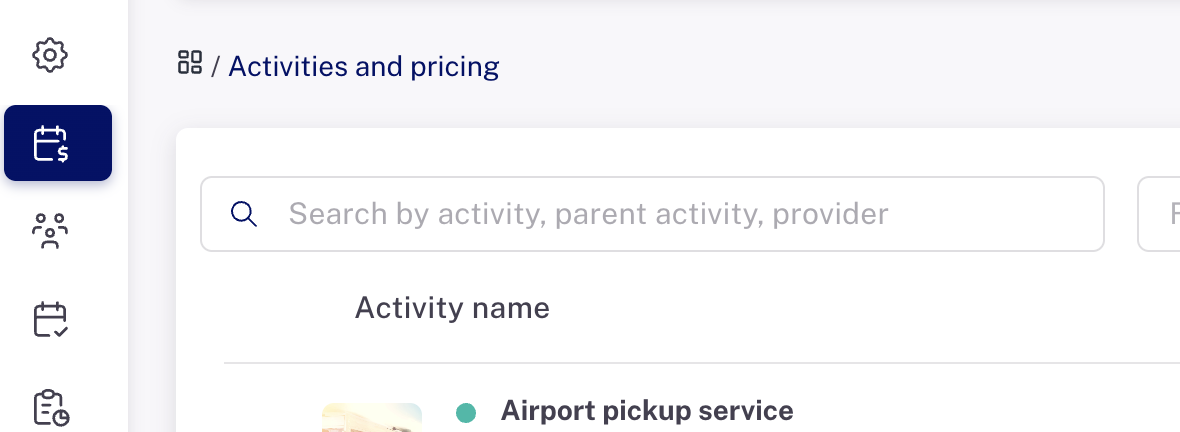
- Go to Activities and Pricing Catalog.
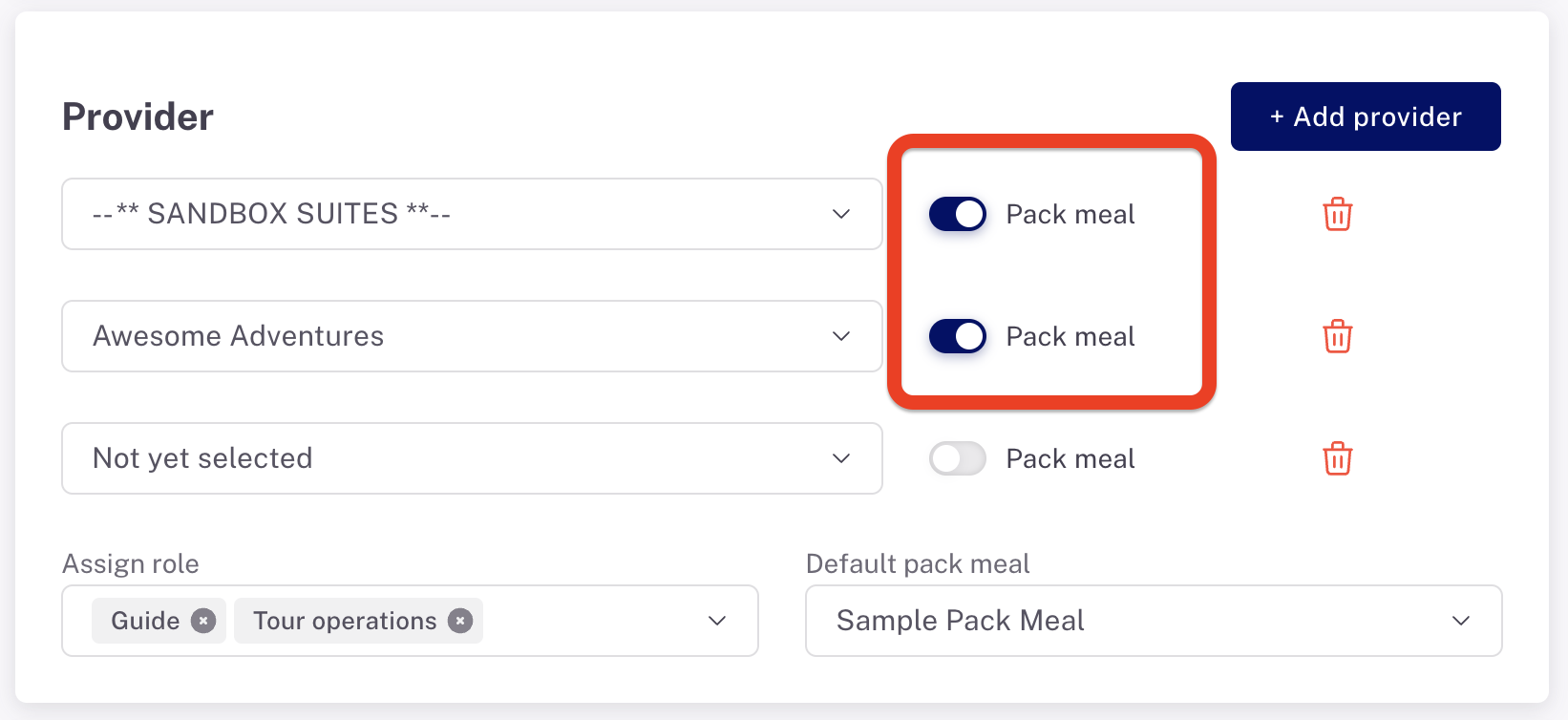
- Turn on the Pack Meal toggle for the activity and provider when meals are usually included and provided by the hotel.
- Pick the default Pack Meal from the dropdown (this list comes from those you set up in Admin Settings).
- Check everything. You can filter activities by Pack Meals, and those with meals will show a knife-and-fork icon. Make sure to activate Pack Meal for any activity where your hotel is handling meals.

Front Desk / Concierge Use
- When booking an activity for a guest, create a new activity or open one you’ve got.
- Find the “Pack Meal” selector.
- Choose the Pack Meal you want to send with the guest.
- Add or tweak special instructions—like packaging or delivery details. Anything you preset in Admin Settings will show up here automatically.
Kitchen Report
Once a Pack Meal is assigned, it shows up on the Kitchen Report next to the guest’s name. At the bottom, you’ll see a summary of total meals and who’s making them. Click on any Pack Meal on the report to see the full details, including what’s in the pack and any extra notes. This way, everyone stays on the same page, and meals get prepared without a hitch.
Last updated: 1/5/26, 5:51 PM