
Settings > Team members
Planniac helps you manage Planniac users and other employees.
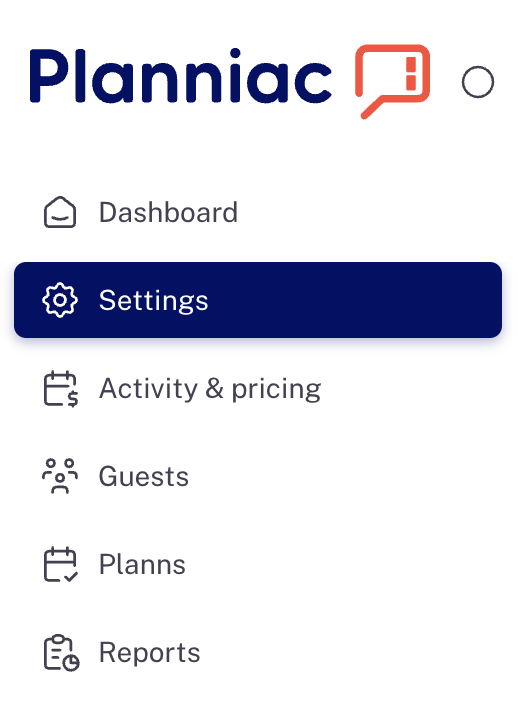
Look for Settings on the left navigation panel
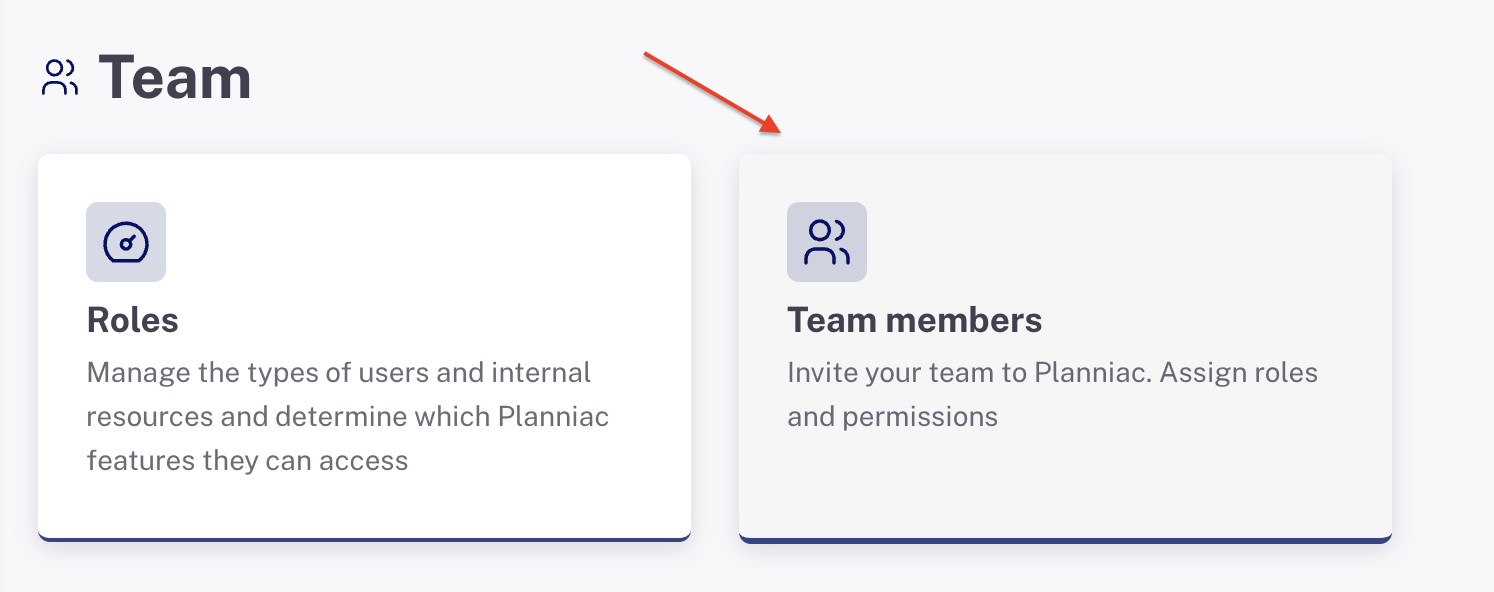
Find the Team members settings card
Here you can add, review, and edit the people in your organization.
When you open this page, you'll see a list of all your team members.

Add a team member
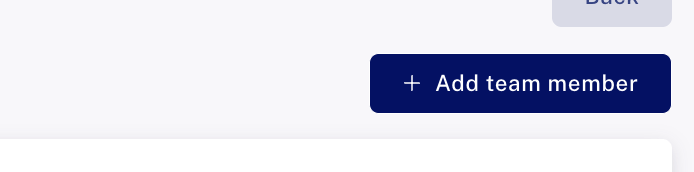
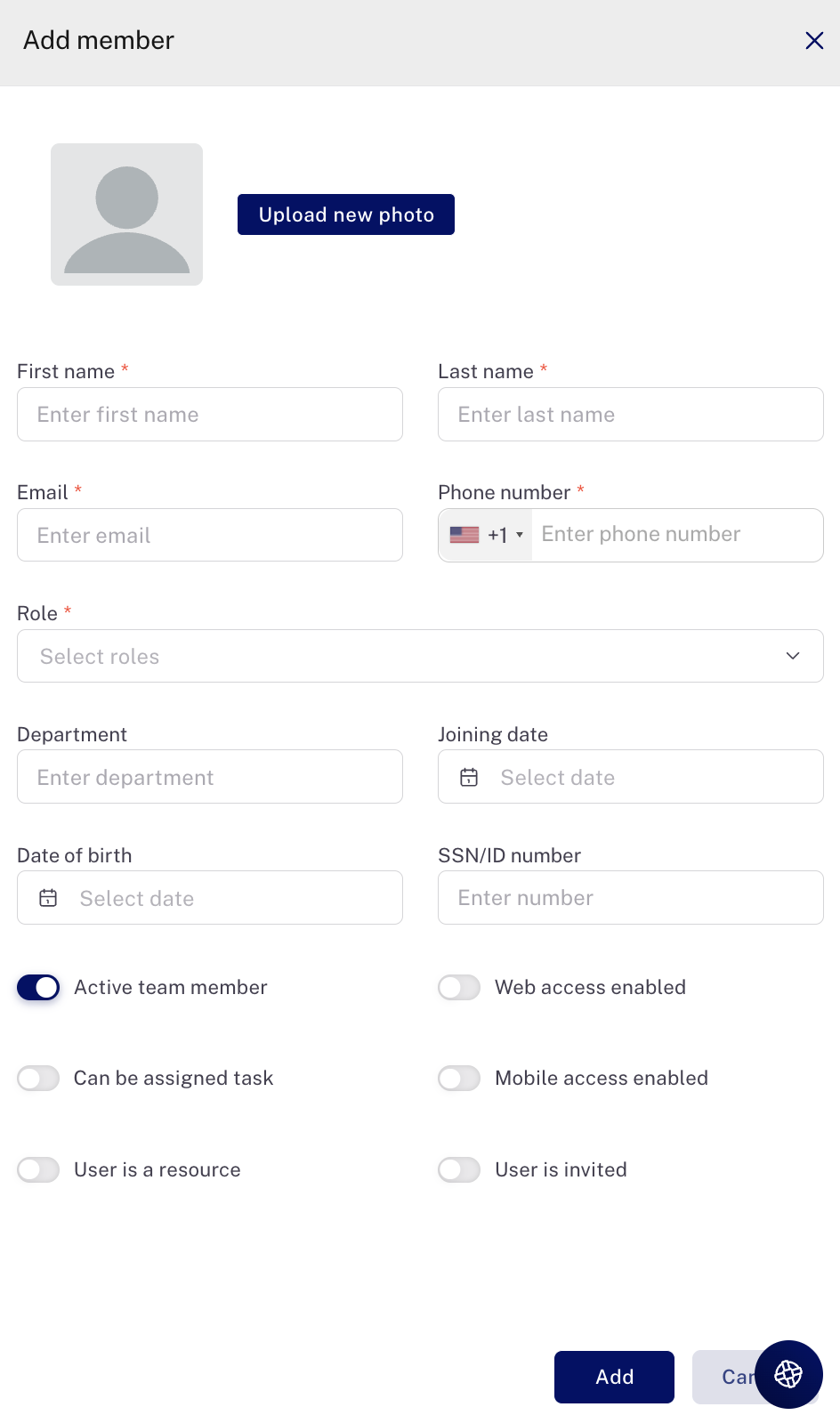
Click the "+ Add team member" button on the top right. It will open a form for completing the information.
Required information
The only information that is required is:
- Name
- Email address (this needs to be unique, however some Planniac clients use a dummy address at their own domain such as sara.sweeper@myhotel.com, even if that email address is not actually in use)
- Phone number.
Note: the phone number country code defaults to the hotel's country.
Allowed access
Use the toggle switches on the bottom to mark which features should be assigned to this team member.
- "Active team member" is the overall setting for whether a person is still on board.
- "Web access enabled" means a person who may log in and use the system, even in a limited way
- "Mobile access enabled" allows the Planniac User to use Planniac Mobile.
- "Can be assigned tasks" puts the person on the list of people who can be selected as an assignee for a task
- "User is a resource" needs to be on if you want an outside provider to have access to Planniac or for a Tour or Spa employee to be able to be selected as a sub-resource from a list
- "User is invited". When you turn this setting "on," the system will send a welcome email to the team member with instructions for logging in the first time. Hint: If you're setting up team members but not ready to invite them yet, just leave this switch "off" until you're ready.
Role(s)
This is where you define the tools that someone may use. When you open the dropdown list, you will see all the possible Planniac roles. It's extremely important to select at least one role for an employee, as this determines three things:
- What they can access on Planniac (desktop/laptop version)
- What they can access on the mobile version
- How they can be selected to perform various tasks or responsibilities
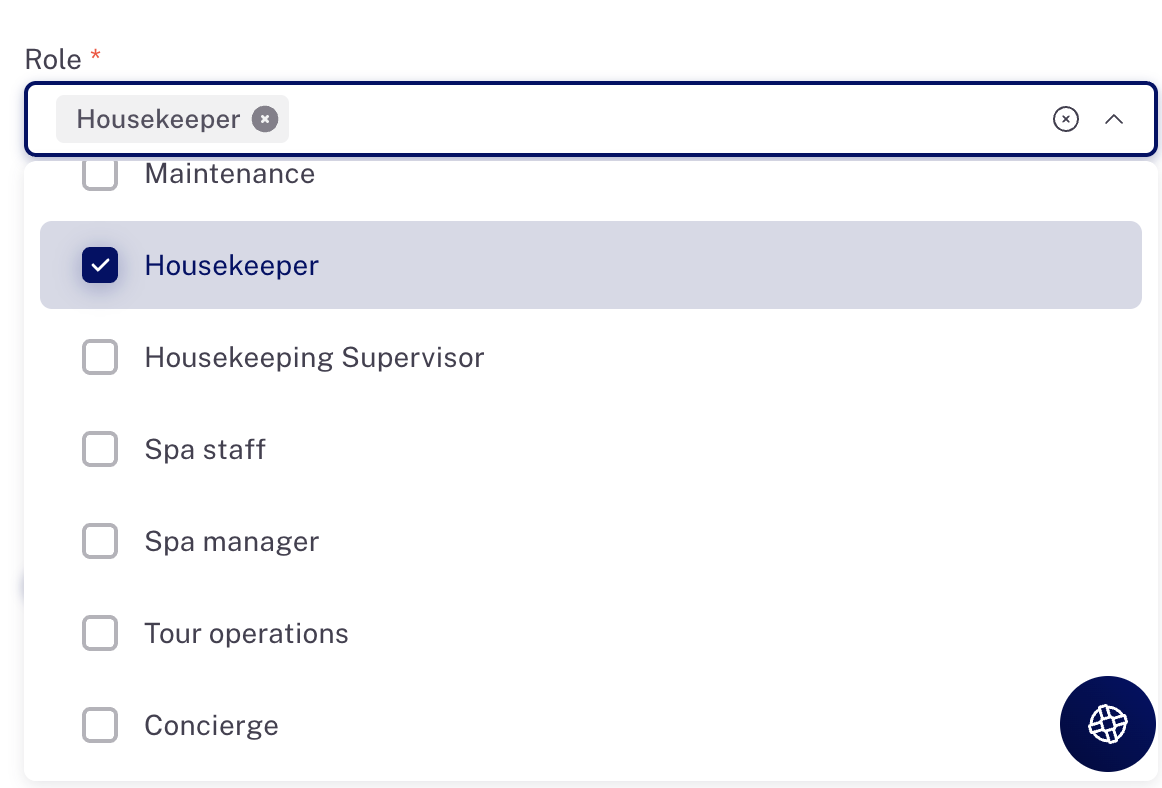
Select from the dropdown list. You can select more than one role. The team member will be given Planniac access according to the highest role that was selected. And some roles (like housekeeping, maintenance, driver, guide, spa, kitchen, restaurant) will have specific permissions pertaining to those roles.
It is possible to assign more than one role to an employee. For example, if you want your Maintenance person to also be able to view Housekeeping assignments, give them both roles. Driver and Guide roles are often combined as are Front Desk and Reservations.
All the roles you have selected for that person will appear in the box.

Permissions for each role
You can completely control the Planniac modules allowed for each role. (With the exception of Owner and Admin roles which are allowed to see and change everything).
But we have set up roles with default permissions, based on our research of what hotels want.
This is what each of the roles you select will be able to access by default:
Front Desk - This is for a standard Front Desk user who can schedule activities and tasks, view and edit guest information, and see reports
Reservations - Includes access to Guests, Planns, Reports
Housekeeper - Someone with the Housekeeper role can be assigned tasks. They will only be able to view the housekeeping app if mobile access is enabled (above). You will be given the option to add them to Cloudbeds. Remember that a Cloudbeds housekeeper name must exactly match the Planniac housekeeper name.
Maintenance - Someone with the Maintenance role can be assigned tasks. They will only be able to view maintenance on the app if mobile access is enabled (above).
Kitchen - Someone with Kitchen access can only view the Kitchen report and be assigned tasks
FOH Restaurant - This is for your in-house restaurant Front-of-House, such as hosts, servers & supervisors, so that they can see a real-time restaurant report. They can also be assigned tasks
F&B Manager - someone with this role can see both kitchen and restaurant reports, and also access Planns, Meal Plan settings and Pack Meal settings.
Security - Read-only information relevant to security. They can also be assigned tasks.
Driver - A driver can view assignments and be assigned tasks (be sure to enable Mobile Access)
Guide - A guide can view tour assignments and be assigned tasks (be sure to enable Mobile Access)
Tour operations - Can view and edit driver and guide information, as well as access the Tours & Transfers report, Planns, Providers and Activities settings.
Spa - A spa team member can be selected as a sub-resource for a Spa activity (mobile access to view assignments is under development)
If you don't select a role, the team member will not have any access to Planniac but they may still show on certain reports.
If a user has multiple roles, add both so they are visible in the right places. For example, if an employee has both Driver and Concierge responsibilities, make sure they have both roles assigned.
Customize roles
- You can edit role names. Maybe you call your Housekeepers 'Cleaning Staff'. Go ahead and change it to what makes sense for your business.
- You can customize the access to features. (with the exception of the Owner and Admin roles which are fixed)
- You can also duplicate roles -- for example if you want to duplicate the Maintenance role so that you have a role called Groundskeeper. Duplicating will give the role the exact same permissions.
- And you can create a new one from scratch.
Department
This is just a text field so that you can easily sort your staff by department or another designation on the Team Members screen. The Department field does not assign a role, so be sure to do that as well.
Other information
Record any other information you choose using the date fields, Social Security / ID field, and notes.
You can use the Notes field for anything related to their employment, including information you'd like to keep a record of like verbal warnings, or just fun facts.
If "Driver" or "Guide" are selected, they expand to show additional fields to record their license information.
More tools
From the Actions menu on the team members list, you can do several things.
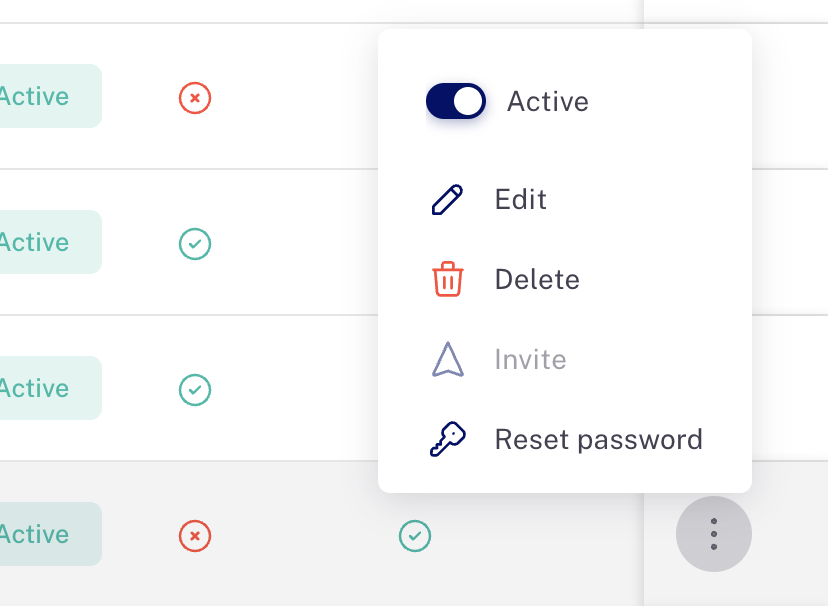
- Activate or deactivate the team member
- Edit the team member's info
- Delete the team member (we recommend using the Active/Inactive feature instead, for historical purposes
- Invite means the team member was invited as a user
- Reset password sends an email to the team member for securely resetting their own password