
✅ HOW TO: Making your way around Planns
Good to know:
Today, Tomorrow and Upcoming
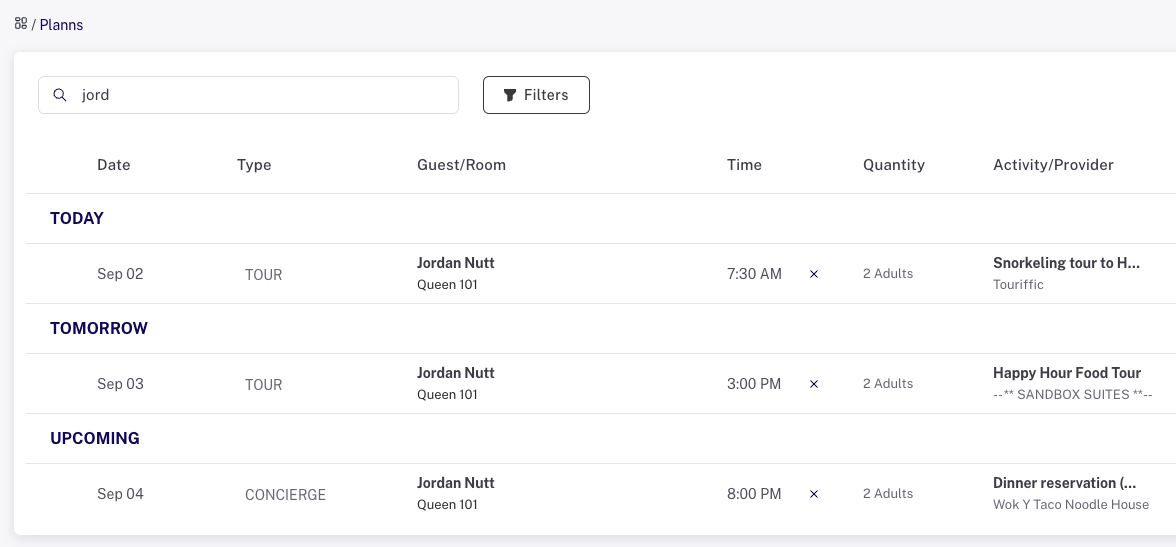
Once you have entered some Planns, you will see them separated by Today, Tomorrow and Upcoming dates. This helps you keep track of the most urgent matters.
Searching and filtering
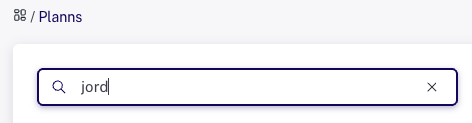
Find any guest and their scheduled activities by typing in the search box.
This will bring up a list of everything related to the search.
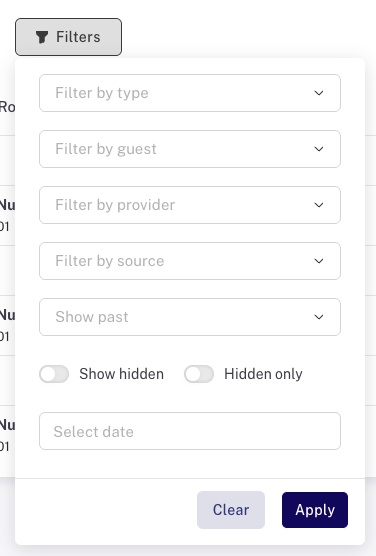
For more filtering options, open the the Filters tool
Need help with using filters?
This article might help.
Planns dashboard content
Date
This is the date the activity has been scheduled. If you need to change the date the activity is scheduled, or modify any other activity details, just click on the date.
Type
There are a number of activity types in Planniac. You can filter the Type on the Planns dashboard view by filtering only the types that you want to see.
Name
The Guest Name column will show the name of the primary guest in the room, or the name of another person in the room responsible for the activity.
Rememeber you can filter by guest name so that you see only the activities related to that particular guest.
If it's a group reservation, when filtering you'll see all the activities for the entire group.
Room Name
The Room Name shows the name or number of the guest room associated with an activity.
If the name of the room does not display but instead you get one of the following warning messages, you should check the activity detail to make sure you have not scheduled something that should be moved to different dates or cancelled.
- A CHECK DATES warning means an activity is scheduled outside of the guest's stay at your property. This could mean the room reservation dates had changed and no one had rescheduled the activity. It could also mean the activity was put on the dashboard in error. Either way, by clicking on the CHECK DATES error message you would be taken to the GUESTS reservation details page.
- NO SHOW would mean the guest never checked in for their reservation (or someone overlooked checking them in on the PMS.
- RES. CANCELLED would indicate the room reservation had been cancelled and in that case you should check to be sure the activity had been cancelled with the resource.
- DELETED means the room reservation was deleted from Cloudbeds. Make sure you have contacted any operator who had confirmed plans for this guest to let them know.
Time
This is the time scheduled for the activity to begin. Activities are displayed chronologically so earlier activities will display above later ones.
If the time shows Not Set in red, it means you need to edit the activity to include the time information.
Remember that everything that shows up red on the dashboard indicates followup is needed!
The time and date formats will depend on your computer settings (Settings > Business information).
Activity
This displays the name of the activity scheduled. You can click on it to open the activity edit tool in case there are updates or changes that need to be made.
If there's an info symbol (i) on the activity name, it means there is a note to read. You can see it when you hover over the activity. The note is normally something important that needs to be seen by the Front Desk associate. That could be notes input by you or another a team member, or dietary information so that you have a quick reference when calling a tour operator or other resource to schedule something for a guest.
Pro Tip: Only users with specific access can add new activities that you can select from. If you are trying to change an activity or customize it, it must be set up first. If you have the permissions to do so, you'll see the Activity & pricing catalog tab on the left side of the page. An activity always has to be set up first before you can choose it from a list.
Provider
This indicates who is responsible for providing the activity.
When you hover over the name of the resource (supplier / operator / vendor / assigned), you'll get a phone number for quick reference. Note the phone number will only appear when it has been entered on the resource's profile in the Resources section of Planniac.
Remember you can filter the page by provider using the filters tool at the top of the page.
Status
The Status column indicates the stage of planning the activity is in. The user who initiated the activity in the first place would have selected a status. Something may have been planned and confirmed right on the spot, or it may have been just an inquiry that requires followup.
Pro Tip: Remember, if it's red, it probably needs follow-up.
Read more about selecting and using statuses
Quantity
This column on the Planns page shows you how many people or items are included in the activity. This changes a little depending on what kind of plan is made. You might notice participants, number of items, or the number of days or hours where applicable.
Balance
The balance column indicates how a charge is paid or intended to be paid. If the field is blank with "--", it means no payment is required because you don't charge for that activity.
An activity with a balance will stay on the PLANNS calendar until a payment method has been applied and the charge is cleared. This helps keep staff accountable for charging every activity on a daily basis.
See the Settings > Payment Types article and the Applying Payments article for more information about how those payment types are set up and applied.
Note: A number in the Balance column that shows in a red color means a payment has not yet been recorded on Planniac.
Refresh screen
If you're working quickly with changes and you don't see them on the screen, you might be faster than Planniac! Try using the Refresh button and see if your plans appear. If they don't, check to see whether you may have entered an incorrect date.
How quickly does Planniac refresh?
The Planniac system is fully synchronized with Cloudbeds PMS. Whenever there is a change to a reservation, those same details will be changed in Planniac within two minutes. Additionally, the Front Desk system queries the PMS every 15 minutes to synchronize any data that may have "escaped". Examples of this are changes to folio balances or new notes that have been added to reservations.
Legend
Sometimes an icon will appear under the activity type column.
These may include:
A red square in the far-left column means that the guest has already checked out.
An orange square in the far-left column means that the guest is checking out today.
A black circle in the far-left column means that the guest’s room reservation has been cancelled. Any activities that had been planned will remain on the list until they are cancelled. The purpose of this is to make sure that any booked activities for a guest who is no longer participating are cancelled with the tour operator or other resource, and, if the cost was already charged to the guest folio, then that charge is deleted.
A red question mark indicates that a guest should have checked out already but is still showing as in-house.
An orange triangle means there is an inconsistency with a group activity reservation.
An Up Arrow means this was a PMS add-on automatically imported into Planniac
A little orange gear indicates an auto-generated entry (these are for certain activities or tasks that you want automatically included with every reservation that meets the criteria
Planniac Help Center
On the lower right-hand part of every page on Planniac, you will see a little button where you can contact support and view articles in our Help Center.
When you click, you'll see all our support options.