
✅ HOW TO: Guests list
The guest list is your gateway to the wealth of information you can collect about any guest.
At the top of the page, there's a little overview to give you some different views of your hotel's occupancy.
Then the rest of the page is your guest list.
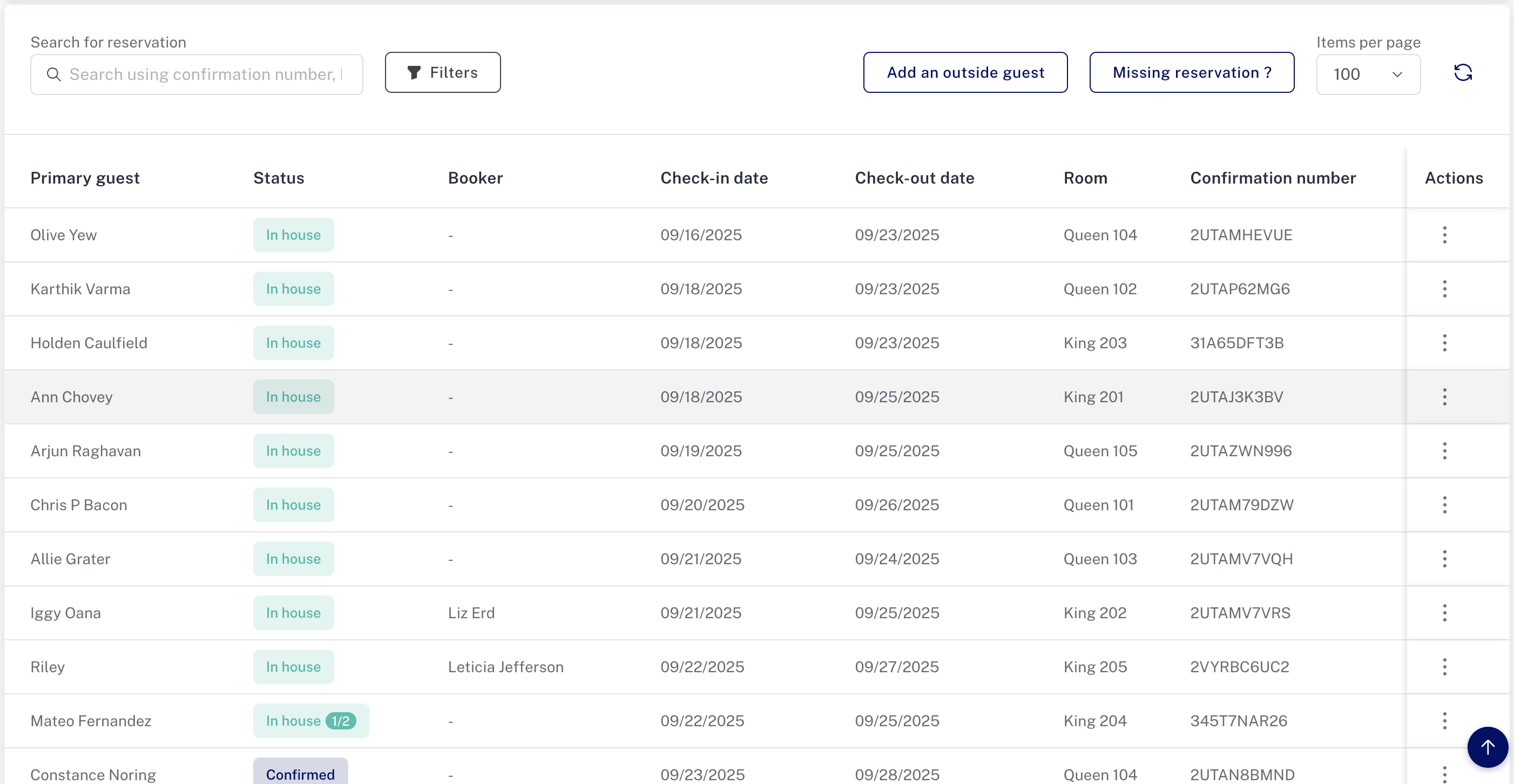
What's on the main list
- Primary guest. This is normally the responsible guest. It's the same name that appears on the dropdown selector on the Cloudbeds account.
- Status. It's easy to see at a glance the reservation or check-in status of your guests. If they're checked in, they'll display as in-house. You'll also see confirmed, pending, cancelled, no-show, and outside guest statuses. Indicators also let you know when the guests are traveling with a group or have a split reservation (moving from one room to another mid-stay).
- Booker. Sometimes the booker is the same as the primary guest, but sometimes it's a third-party or one of the other guests. Listing the booker helps you keep track of groups traveling together, too.
- Check-in date, check-out date, room assignment and confirmation number might be useful before, during or after a guest's stay. You can search the page by any of those things.
Search and filter
Unless your mind is a steel trap, you might need a little help locating a guest record sometimes. Search makes that a little easier.
Search
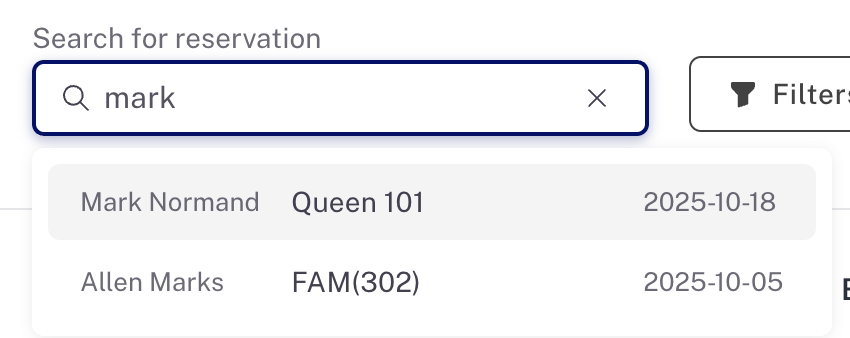
In the 'Search' box, type a guest name, booker name, group nickname or confirmation number. You'll see a list of everything that matches and you can select a reservation from that list.
Filters
You can use individual filters or combine them.
- Filter by status, such as 'Checked in,' 'Checked out,' 'Confirmed,' 'Cancelled,' and more
- Filter by room
- Select a date range to only show reservations within that date period
- Use a filter to only show 'Outside guests'
Missing reservation
Planniac collects new reservation data from the PMS every minute, but if you just can't wait, use the 'Missing Reservation?' tool to import it in 20 seconds instead.
Add an outside guest
If your hotel offers activities to outside guests (like spa services, tours, and rentals), you can add the guest to your guest list. So you don't have to manage activities for in-house guests and outside guests in two separate places. Of course they're clearly identified.
Display preference
You might find it easier to work if you scroll through shorter pages of your guest list. We set the default at 100, but that can be changed.
Refresh
Click the refresh icon to reset the view settings and refresh the guest list. This is a little quicker than using your browser to reload the entire page.
Actions
Under Actions, you can select what you want to do next. You can view the guest details page, copy and send links to your online offers, guest itineraries or pre-registration form, view guest-specific notes and activity lists, add a 'placeholder' for a new activity, check the guest in or out, update the PMS, or go directly to the guest record on the PMS.
Tip: Are guests missing from your guest list page? If you are a new hotel to Planniac or you've been inactive a while, you may need to ask us to synchronize your guest list. For new Planniac hotels we recommend connecting your meal plans and Cloudbeds add-ons first, because then when you do the import/sync those add-on purchases will show up in Planniac. Contact techsupport@planniac.com if you need help importing or reimporting guests.