
✅ HOW TO: Link your Cloudbeds add-ons
When a guest adds a transfer or some activities to their hotel reservation, they've committed (and usually paid) upfront. That can make the guest feel confident in the arragements and committed to sticking to them. And for you, the result is hands-free Planns.
Example
A guest books a “Weekend Escape” package in Cloudbeds that includes:
- Daily breakfast
- Winery tour
- Hiking tour
When the reservation is imported into Planniac:
- The guest itinerary is updated automatically
- The included activities appear in Planniac
- The booking is marked using the Cloudbeds pricing that was paid during reservation
This allows staff to coordinate operations without manually re-entering activities.
How it works
Activities exist independently inside Planniac.
Cloudbeds packages or add-ons can then be linked to those activities so that bookings automatically appear in Planniac when a reservation is made.
Here's how Planniac does this:
- Automatically captures those requests and puts them on your Planniac schedule without manual entry
- Indicates the activities have been charged to the folio
- Highlights newly received add-ons on the Dashboard page
The key is in the setup
- Go to Settings > Activity and create or open an activity that needs to link to an add-on.
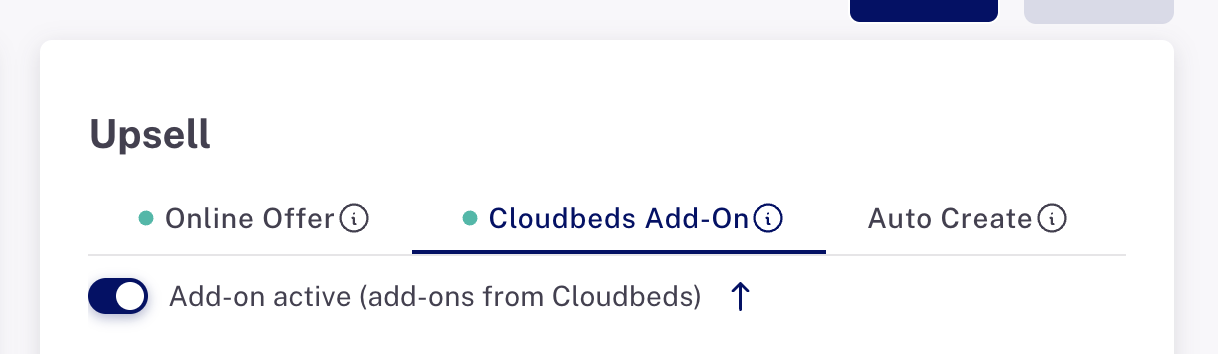
- Open the 'Cloudbeds Add-on' tab and click to activate the add-on
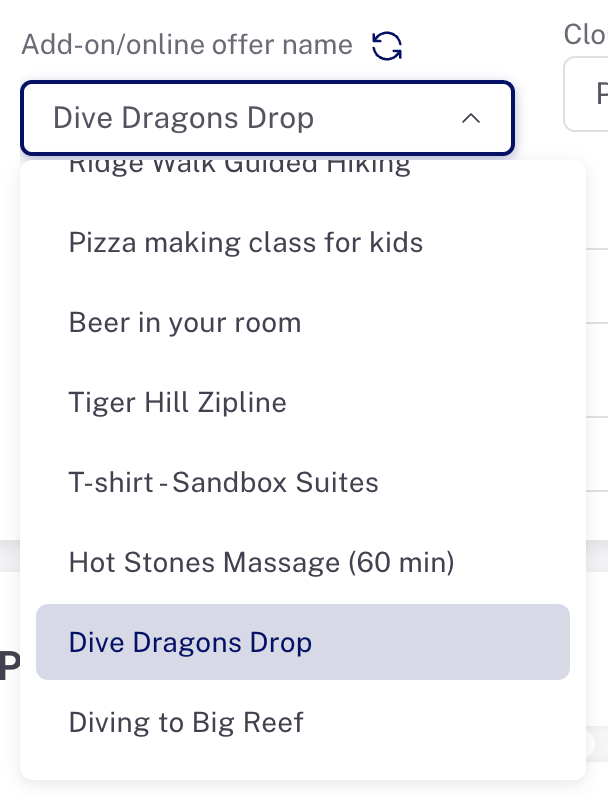
- Select from the list of available add-ons (these are read from your Cloudbeds account)
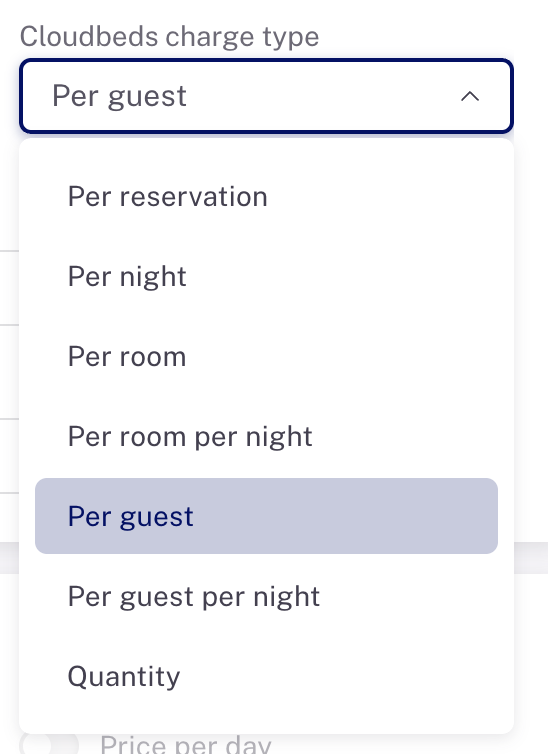
- Select the Cloudbeds charge type. This is how Planniac matches the type of product/service. For example, a Tour might be 'per guest' but and Early Checkin add-on would be 'Per room' and a Rollaway Bed might be 'Per room per night'.
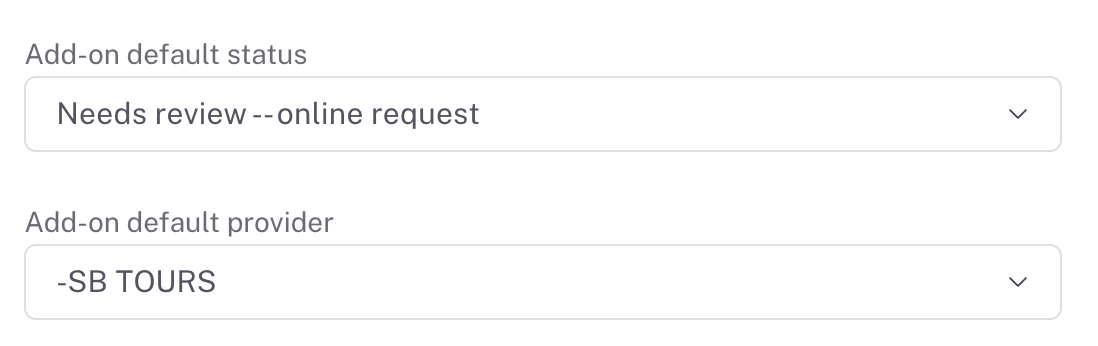
- Select the default status. Use something like 'Need to book' or ' Requested online' so that staff know it still needs follow-up.
- Select the default provider. If there isn't one 'Not yet selected' is an option.
Important limitation: You can only link one activity to an add-on when the reservation is imported. So for example, you can't link both an auto-create task and a package. Only one of those will be created - the other will not.
Testing your setup
You can test package mappings by:
- Creating a test reservation in Cloudbeds.
- Selecting the package or add-on.
- Verifying that the linked activity appears automatically in Planniac.
Benefits
- No duplicate data entry
- Accurate activity tracking
- Clear visibility of prepaid experiences
- Better operational coordination across departments