
✅ HOW TO: Work in Day View
Using Day View
Day View gives staff a quick way to see what is happening on a specific day—and to book activities directly from the Day View panel.
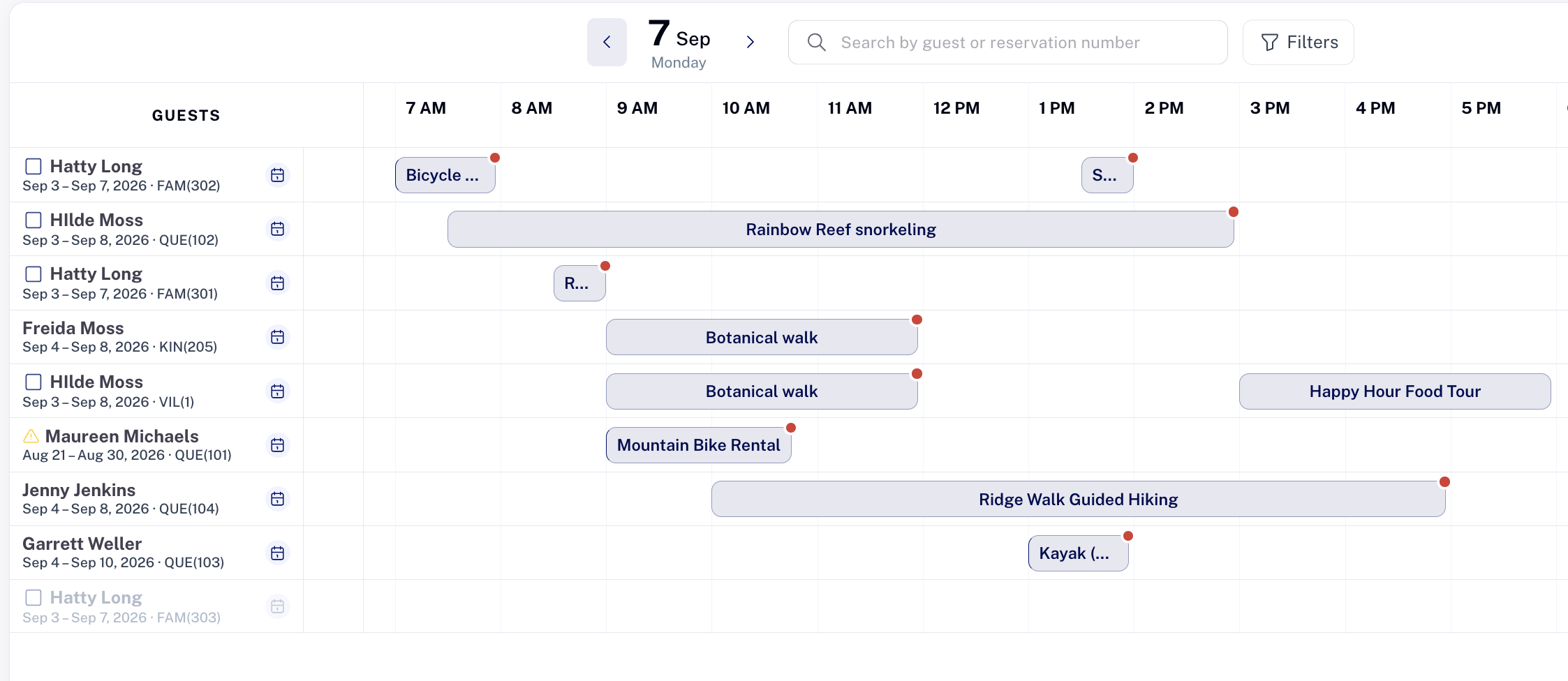
Day view has two main views:
- All guests — See and manage activities for all guests staying at the property, as well as outside guests with activities booked that day
- Specific guest — Focus on the activities for one particular guest.
All guests
The All guests view provides a complete picture of the day’s activities.
Staff can use it to:
- See which guests have activities scheduled
- Review activity times and statuses
- See who is participating in each activity
- Open existing activities to view or update their details
This makes Day View useful for handling requests that come up during the day—for example, when a guest asks the front desk to book a tour, spa treatment, transfer, or other activity.
Specific guest
The Specific guest view focuses on one guest’s activities for the selected day.
Use it when you are working directly with a guest and want to see what they have planned or add something new to their schedule.
From this view, staff can:
- See the guest’s activities for the day
- Review activity details
- Book an additional activity for the guest
- Open and update existing activities
- Use the '+Add activity' button to open a modal with the whole catalog of activities that can be booked, honoring the scheduling and capacity limits set in the Catalog.
This is especially useful for last-minute or ad-hoc requests. A staff member can find the guest, see their existing schedule, and add another activity without leaving Day View.
Booking an activity from Day View
Day View can be used as a quick, ad-hoc activity booking tool.
When booking an activity, select the guest and choose the activity you want to add. Planniac uses the activity’s existing setup—including scheduling, availability, capacity, pricing, and other booking rules—to determine what can be booked.
Once booked, the activity appears in the guest’s schedule and in the appropriate Day View listings.
When to use Day View
Day View is particularly useful for front-desk and operations staff who need to manage activities throughout the day.
Use it to:
See the day
Get a quick overview of everything happening today.
Help a guest
Look up a guest’s schedule and answer questions about their activities.
Make a last-minute booking
Book an activity directly from the Day View when a guest makes a request.
Manage the schedule
Open existing activities to review or update their details.
Day View brings these tasks together in one place, making it easy to manage the day’s activity schedule without having to navigate through individual reservations.
I dont' see an activity on Day View that I want to book.
In the individual guest's view, at the bottom you'll see a + Add activity button. Click that and you can search for anything, like you would if you were making a plann the other way. Once you've added it to the list you can click in the timeline anywhere it's available.
Admin hint: You can choose to feature any activities on Day View with an easy setting on the Catalog page. Featuring them will show an outline indicating fixed schedules or timeslots. Then staff can just click on the 'empty' activity and book it! On-request activities can be booked by clicking anywhere. We recommend using that for frequently-booked transfers, tours, or check-in extras.