
Setting role-based visibility
If you have a lot of activities or tasks on the planns page that all your users don't need to see, you can set them to be visible only to certain roles
Set up the activity
Provider settings
- Go to Settings > Activity (or Catalog)
- Open an activity or create a new one
- Make sure it has an activity name and activity type
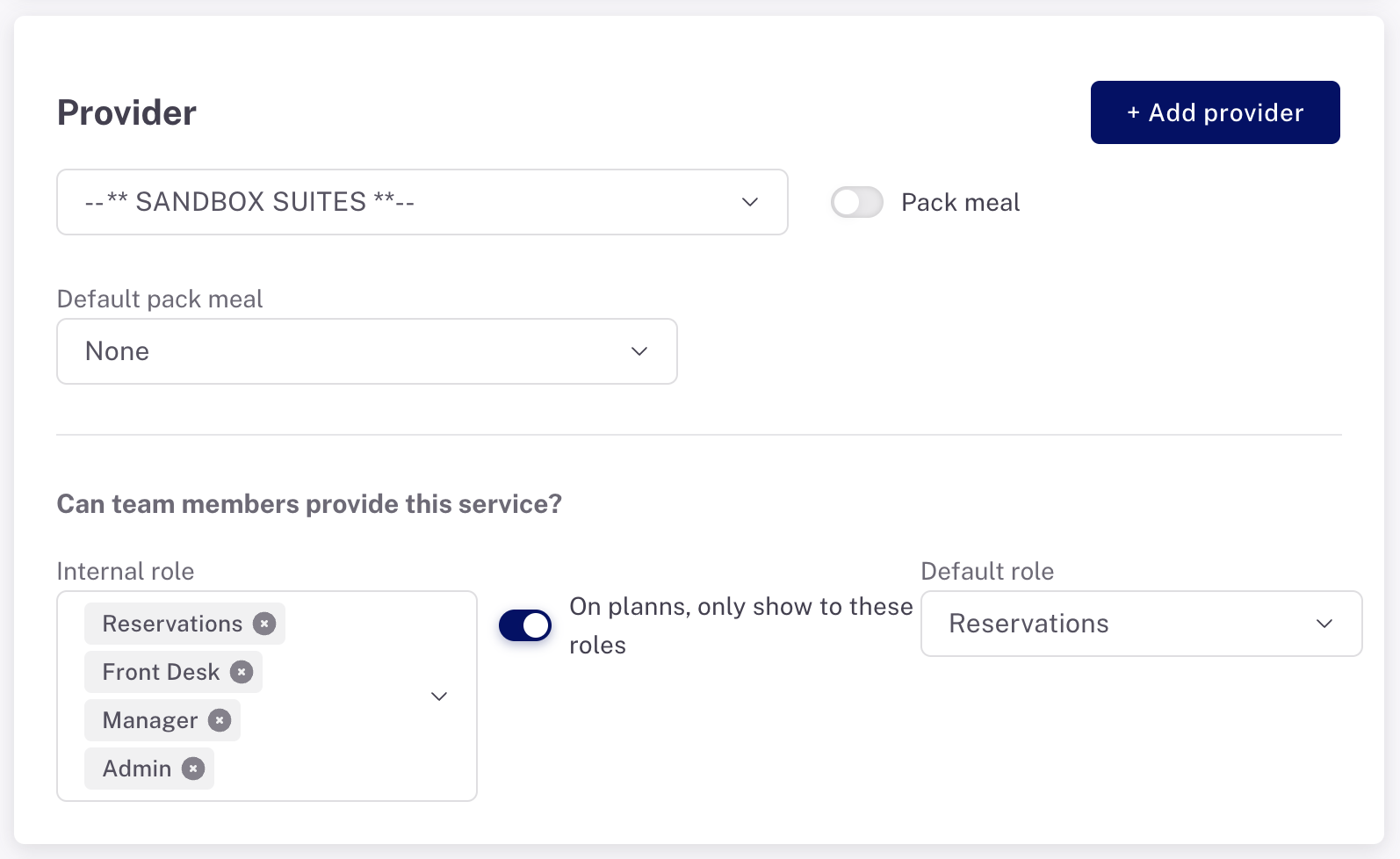
- In the Provider section, select the provider. Hint: if it's an internal task you're creating, we recommend using the hotel (or profit center such as 'Dive shop' or 'Hotel spa') as the only provider. When you select a primary, in-house provider, additional fields will appear in this section
- Under the heading 'Can team members provide this service?' you should select all roles that should have visibility of this activity once it appears on the Planns page.
- Turn on the toggle 'On planns, only show to these roles'.
Auto create
Do you want this activity attached to every reservation that comes in with the default role selected?
- Toggle 'on' the Auto create under the Upsell card on the far right
- Fill out the fields, including the default provider and the rules for when this should be created
Save
Just a reminder...always save your work!
Test on Planns
Now check by doing this:
- Create a plann using the activity you created with the role assigned and the toggle switch 'on' to restrict it.
- If the user has the assigned role, the plan should appear
- If the user does not have the assigned role, they should not see the plan
- If you created an 'Auto create' rule, then you'll need to create a new reservation in Cloudbeds before you can check to be sure those results are what you expected.
Last updated: 3/8/26, 3:13 AM